One-time memberships (intro offers, class packs) — create the invoice, set a custom price, collect with Stripe
One-time memberships (intro offers, class packs) — create the invoice, set a custom price, collect with Stripe
A one-time membership is a package that is paid once — an introductory offer, a trial week, a 10-class pack, a holiday camp. Unlike a weekly or monthly membership it never renews and it is never a Stripe subscription. Instead, Sports School Manager creates one invoice for it and, if your school uses Stripe, can charge the saved card or email a payable invoice.
This article shows how to:
- set up a one-time package (with an expiry),
- give a student a one-time membership and create its invoice — from the Membership tab or the Invoices tab,
- override the price for one student,
- collect the payment with Stripe, or record it in cash / EFT,
- read what the membership card tells you afterwards.
Who can do this: owners and admins with the Student subscriptions – create permission (the same people who can add memberships). Collecting via Stripe additionally needs the school to be set to Stripe payment management with the Stripe account connected.
Step 1 — Set up the one-time package
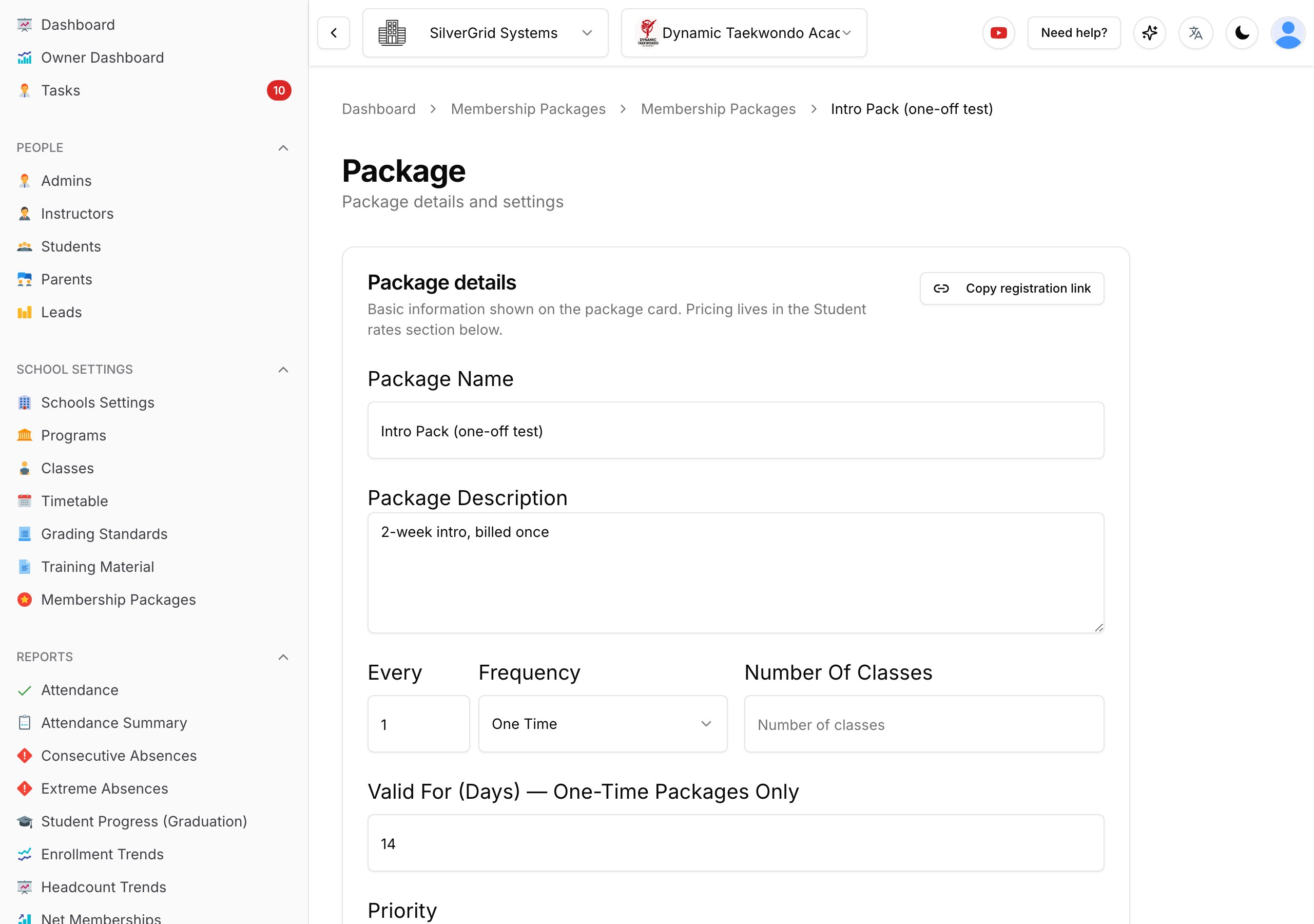
Go to School settings → Membership Packages and create or edit the package:
- Frequency: One Time. This is what makes it a one-off membership.
- Valid for (days) — optional. For a two-week intro enter
14. When the membership is assigned, its expiry date is pre-filled as start date + this many days. Leave empty if the membership does not expire. - Student rates — the list price (for example Standard — $15.00). One-time packages do not need a Stripe price on the rate; Stripe invoices are created with the amount directly.
- Tick Introductory offer if this is your trial package — it feeds the Owner Dashboard's intro-sales and rollover figures.
Step 2 — Give the student the membership (Membership tab)
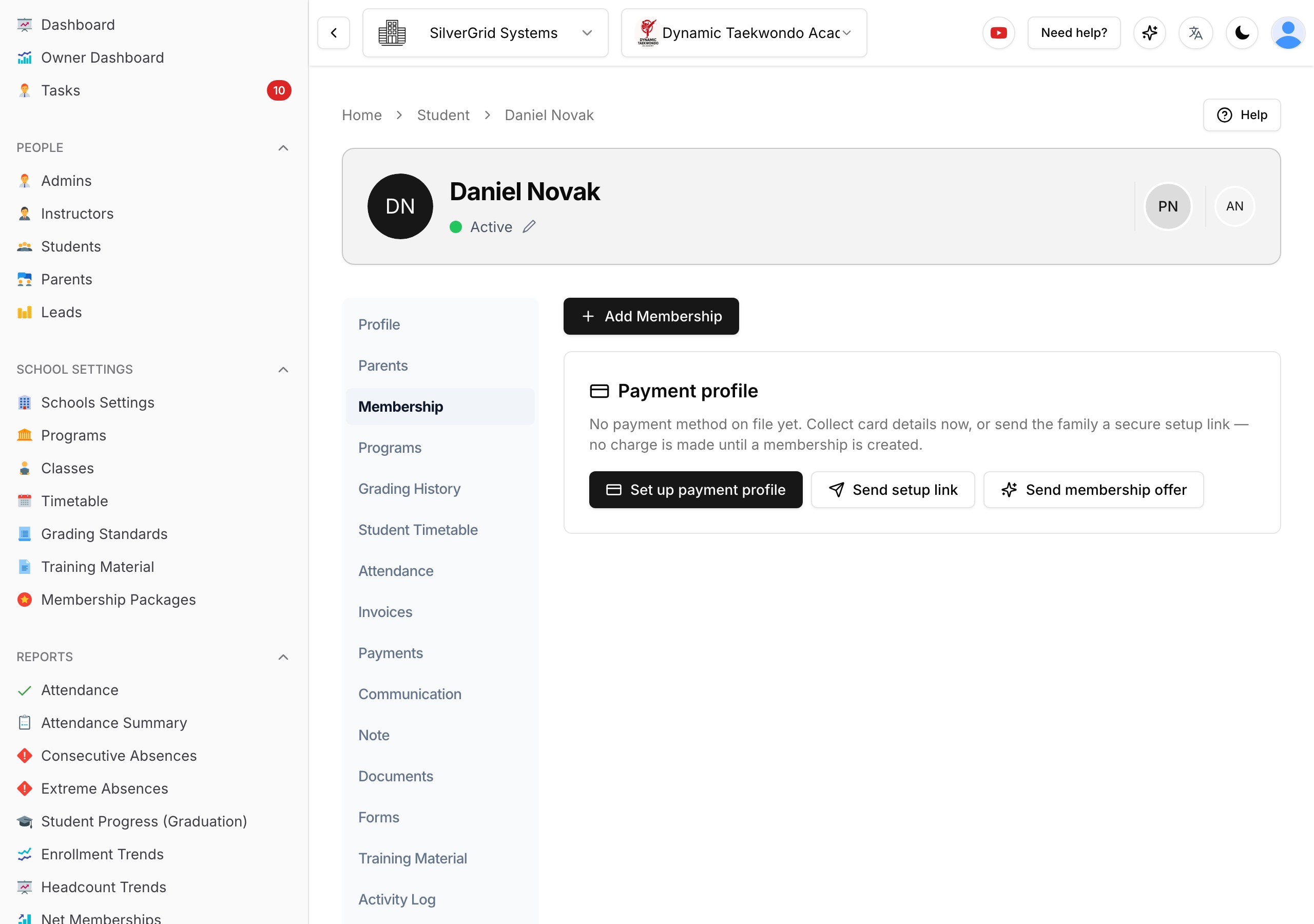
Open the student, go to the Membership tab and click Add Membership.
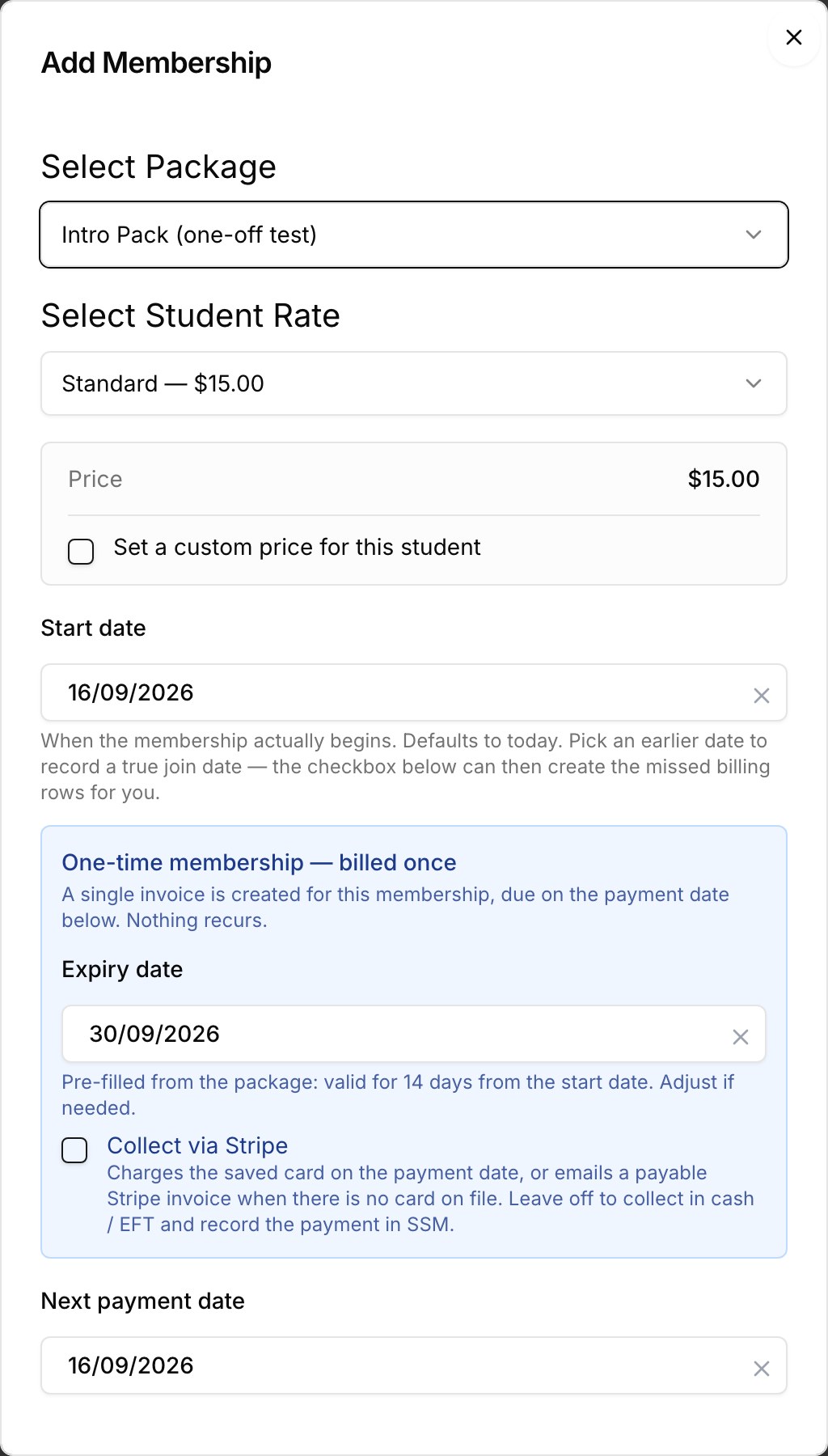
Select the one-time package. The form shows a blue "One-time membership — billed once" box:
- Expiry date — pre-filled from the package's Valid for (days); change it if you agreed something different with the family.
- Start date and Next payment date — the payment date is the invoice's due date. Leave it as today to bill immediately, or pick a later date.
Override the price for this student
In the Price box tick Set a custom price for this student and type the amount. The list price is shown struck through next to the new price. The invoice is created for the custom amount.
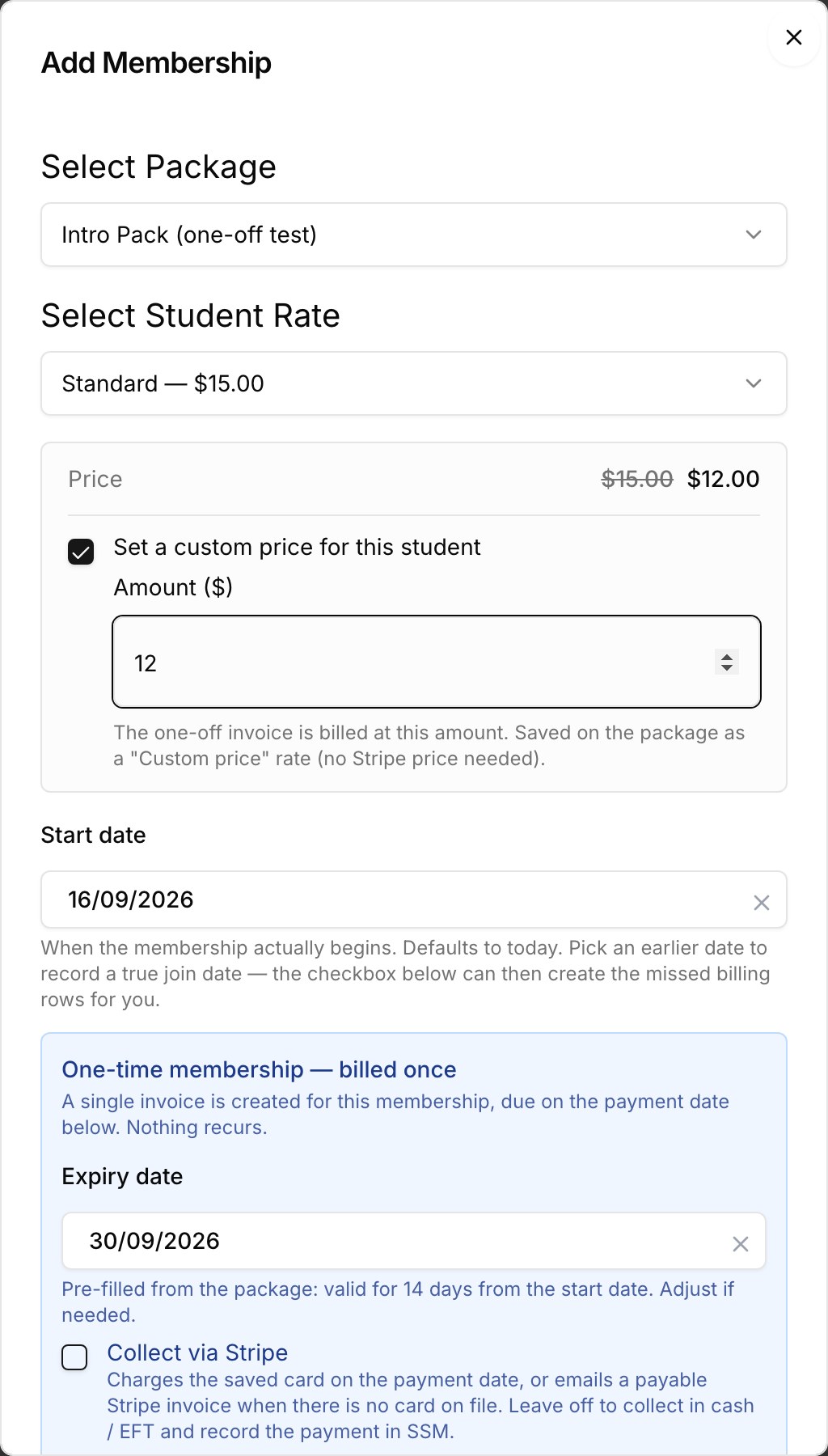
Behind the scenes the custom amount is saved on the package as a "Custom price" rate, so it also shows on the membership card and in the Student Subscriptions report. The same amount is re-used the next time you enter it — your package does not fill up with duplicates. Custom prices are available for one-time packages only; recurring rates are tied to their Stripe prices.
Collect via Stripe
In Stripe-managed schools the box also has Collect via Stripe. Tick it to have Stripe collect the invoice (see How Stripe collection works below). Leave it off to collect in cash / EFT.
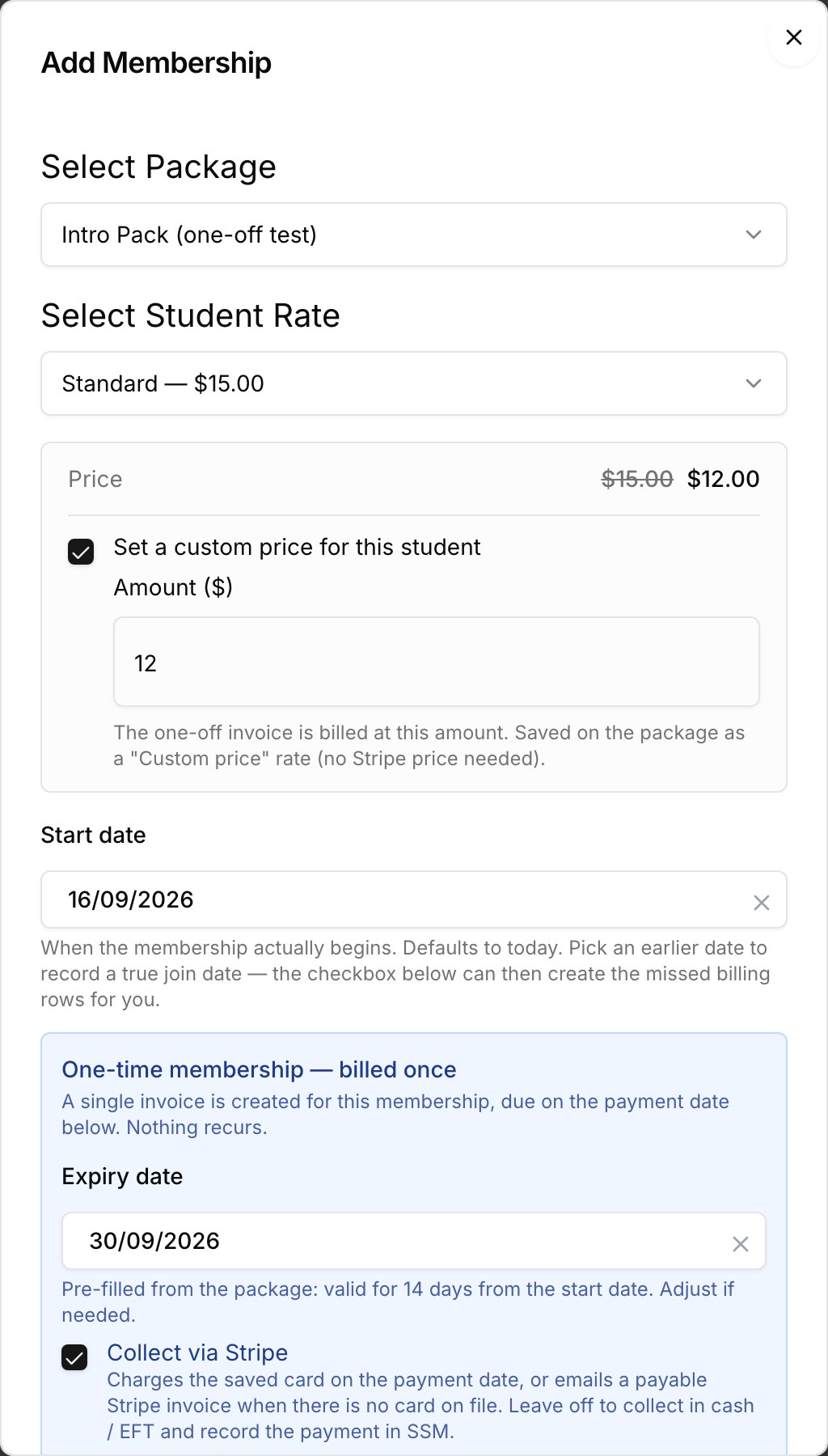
Click Save. The membership is created together with its single invoice, and the confirmation tells you what Stripe did (charged, emailed, or scheduled).
Step 2 (alternative) — Create the invoice from the Invoices tab
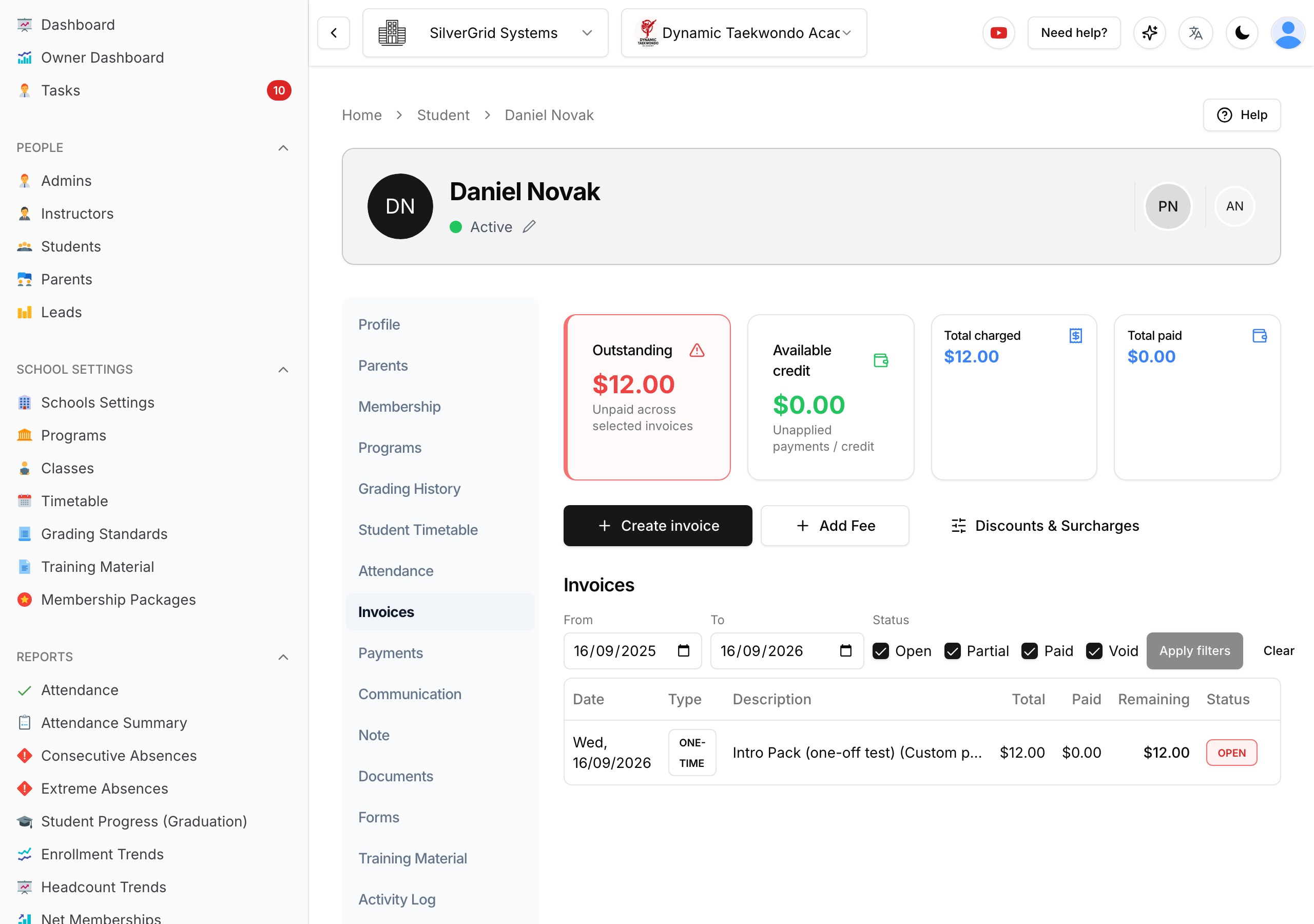
If you think in invoices rather than memberships, use the student's Invoices tab and click Create invoice. It lists only the school's one-time packages.
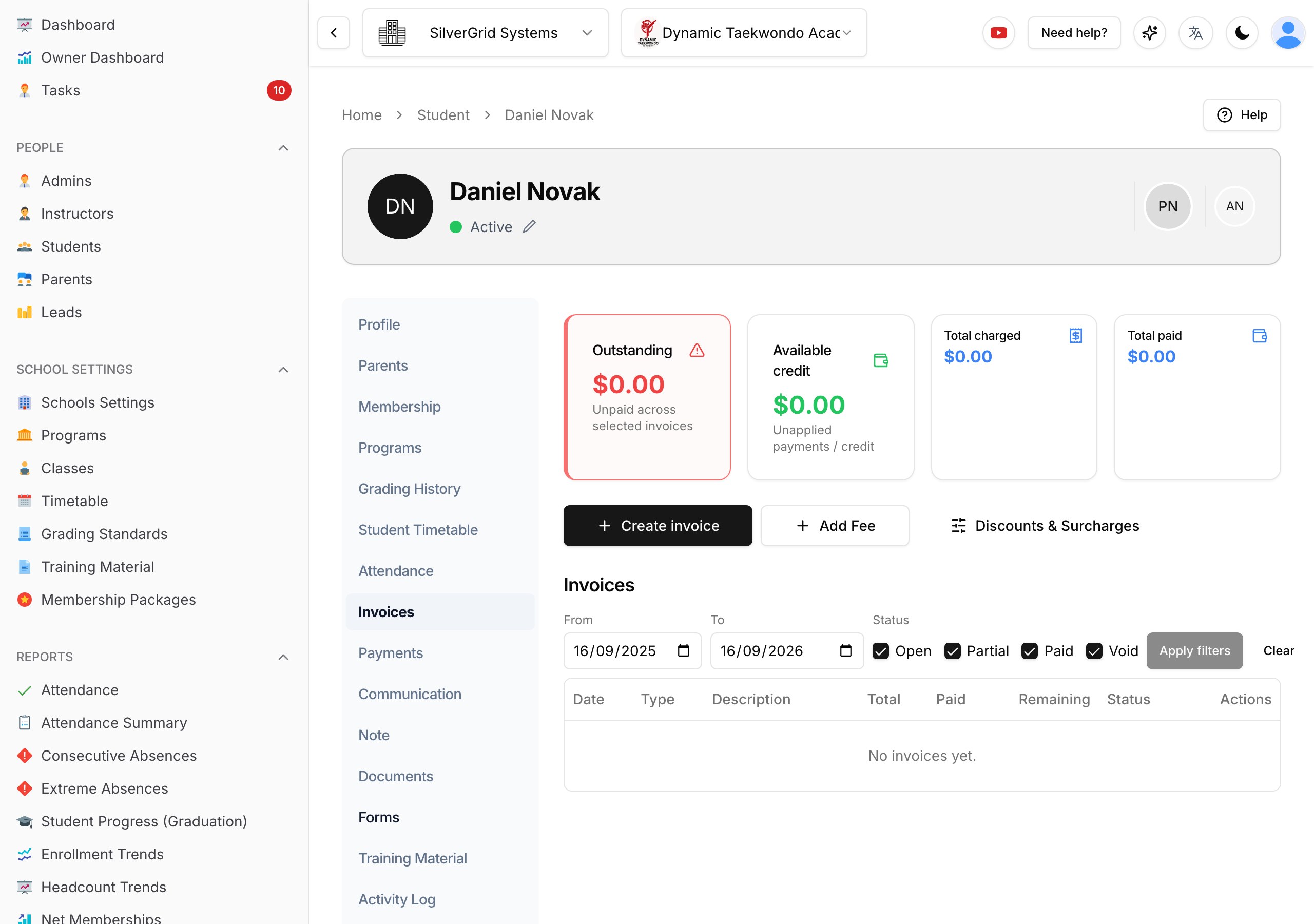
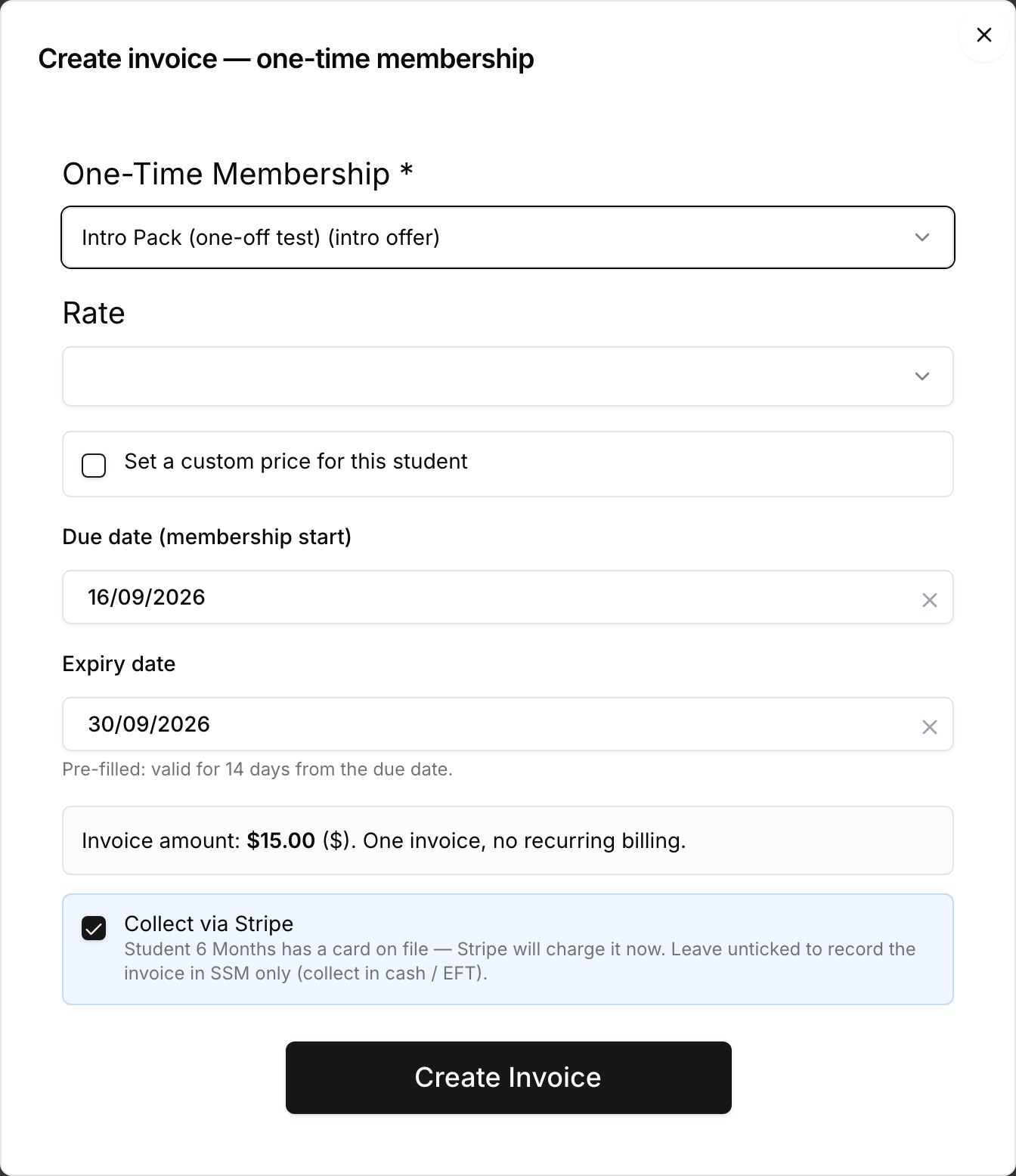
Pick the package and rate, optionally a custom price, the due date (which is also the membership start date) and the expiry date, and decide whether to Collect via Stripe. The dialog tells you up front what Stripe will do for this payer — charge the card on file, or email a payable invoice.
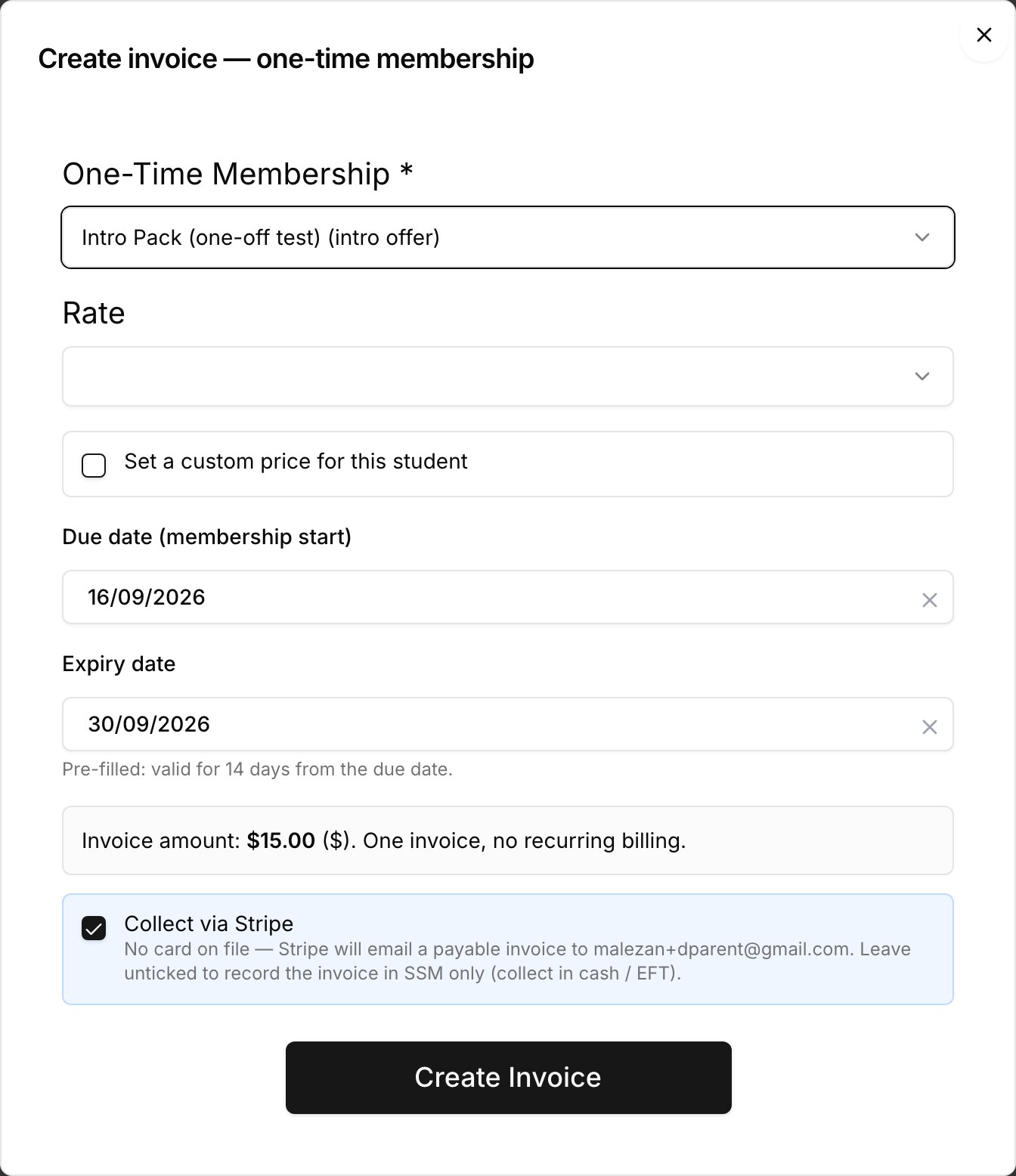
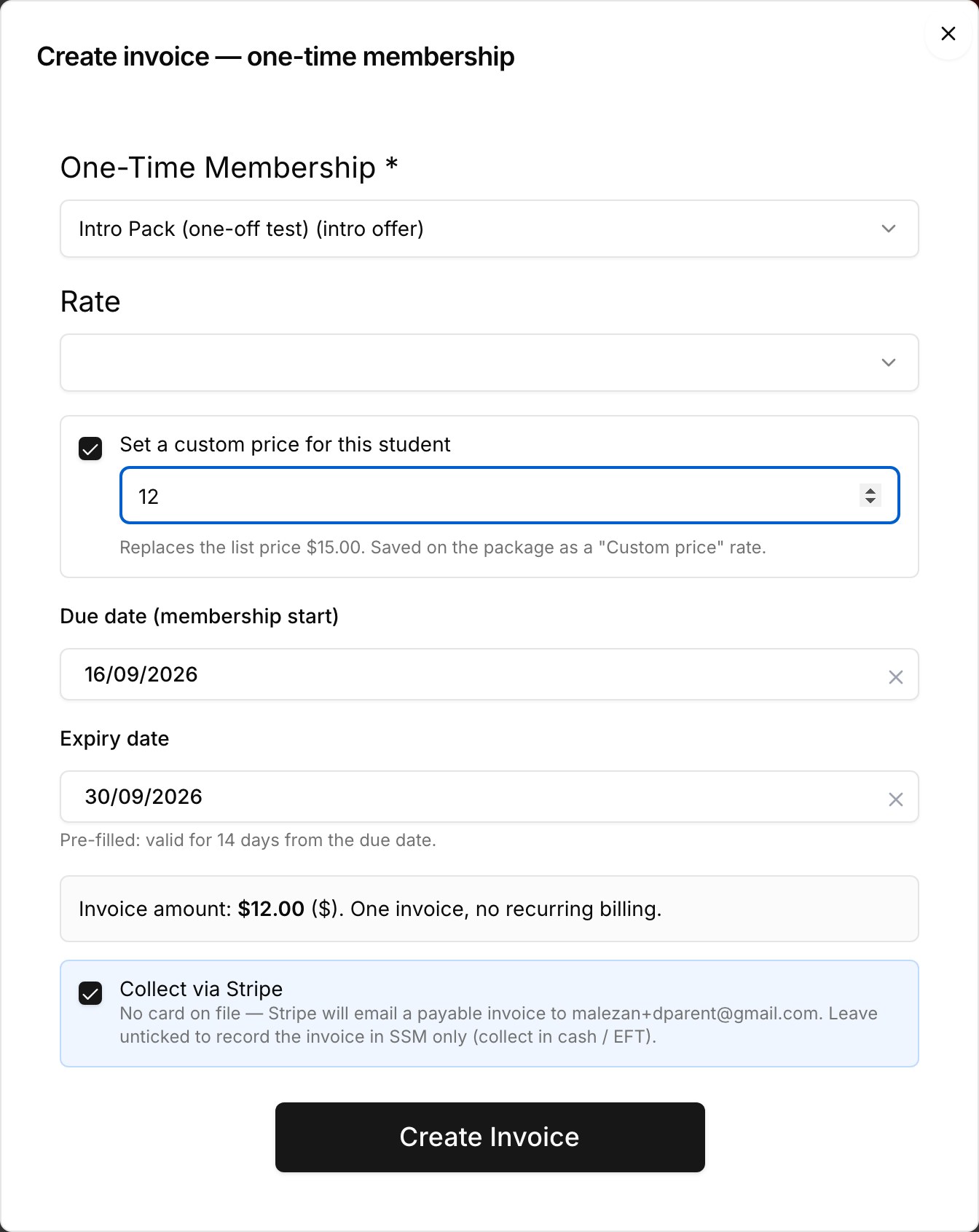
Click Create invoice. The student gets the membership (it appears on the Membership tab and in the Student Subscriptions report) and the invoice shows in the list with the type ONE-TIME.
If the student already holds a one-time membership that was never invoiced (for example one added before this feature), the dialog offers it under Invoice for → Existing, so you can create its invoice without adding the membership twice.
How Stripe collection works
With Collect via Stripe ticked, the payer is the linked parent (or the student when there is no parent) and a real email address is required. Then:
| Situation | What happens |
|---|---|
| Card on file, due today | A Stripe invoice is created and charged to the saved card immediately. The payment appears on the student's Payments tab within seconds and is refundable like any Stripe payment. |
| No card on file, due today | Stripe emails the payer a payable invoice with a hosted payment page (7 days to pay). When they pay, the invoice is marked paid in SSM automatically. |
| Due date in the future | The invoice exists in SSM straight away; Stripe collection is scheduled and runs on the due date (card charged, or invoice emailed). |
| Payer has Stripe credit | Stripe settles the invoice from the credit balance first and only charges the remainder. |
| Free package or "Collect via Stripe" off | Only the SSM invoice is created. Record cash / EFT with Collect Payment on the Payments tab. |
The dialog's hint shows which case applies before you save:
A declined card does not stop the process: Stripe keeps the invoice open, emails the payer, and retries according to your Stripe dunning settings. The membership card shows the invoice as open until it is paid.
What the membership card shows afterwards
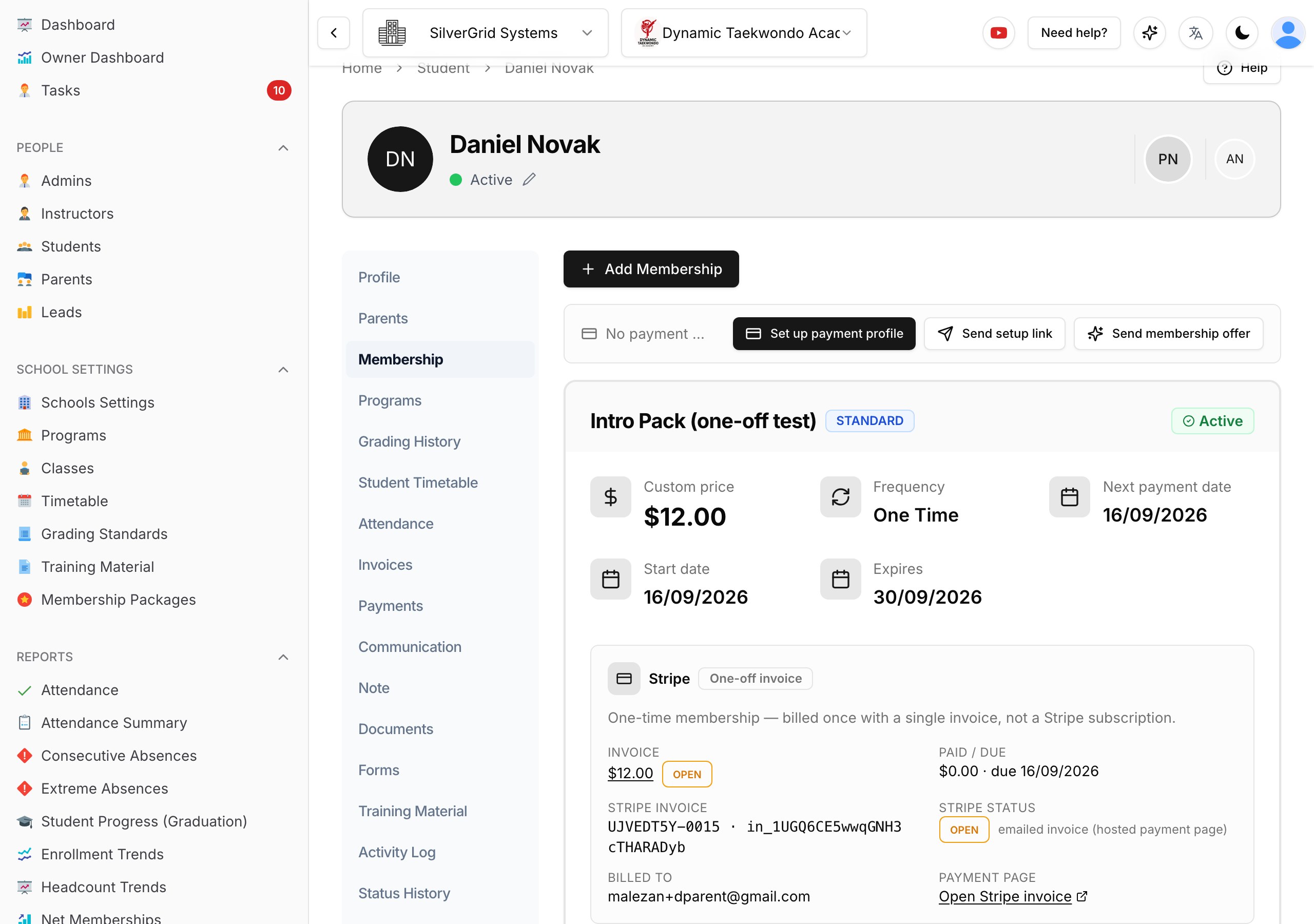
For a one-time membership the Stripe section of the card shows the invoice, not a subscription: the SSM amount and status, the Stripe invoice number and live status, how it is being collected, who was billed, a link to the Stripe payment page, and — once paid — the payment with its Stripe charge id.
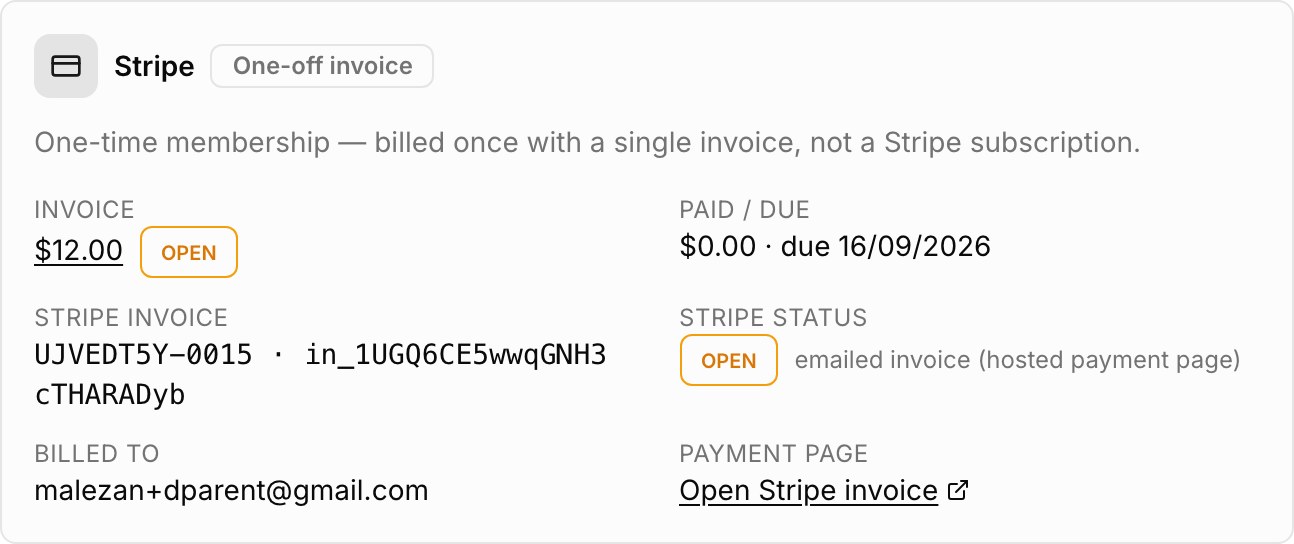
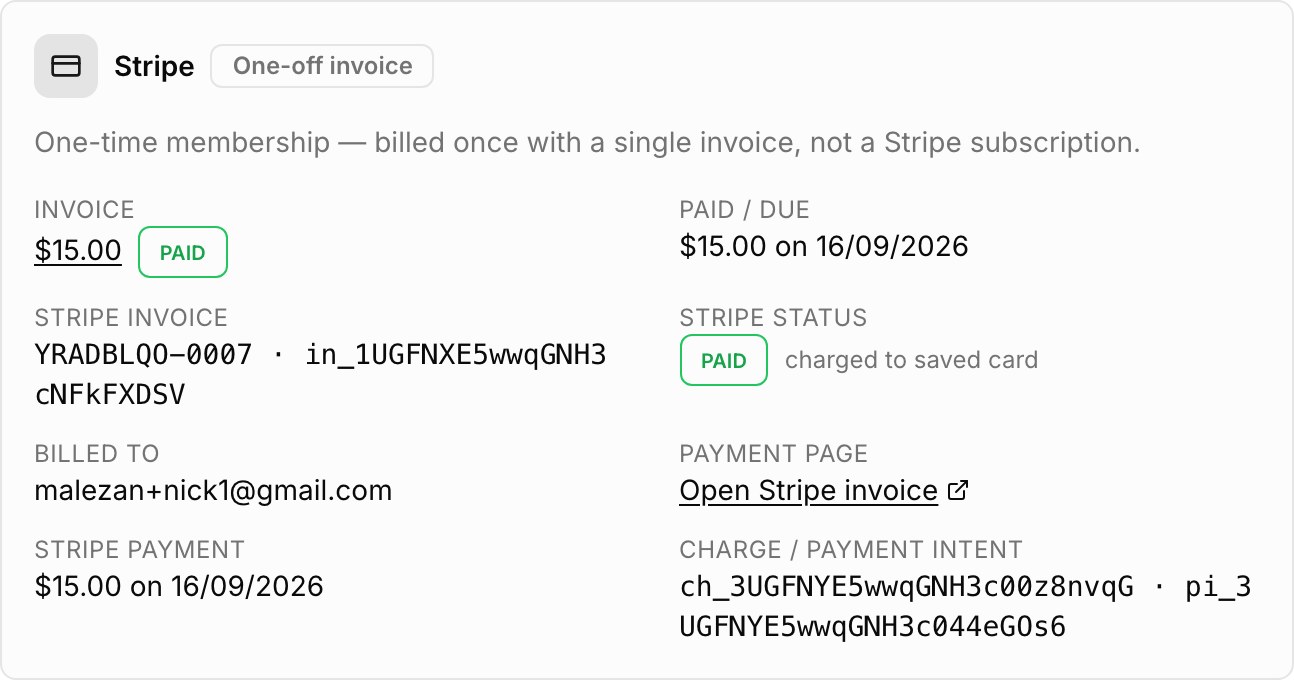
The card also has an Expires date. Once it has passed it turns red with an Expired badge, so you can see at a glance which intro offers need a follow-up.
If the invoice was created without Stripe, the section says so and offers a Create Stripe invoice button — use it when the family later asks to pay by card.
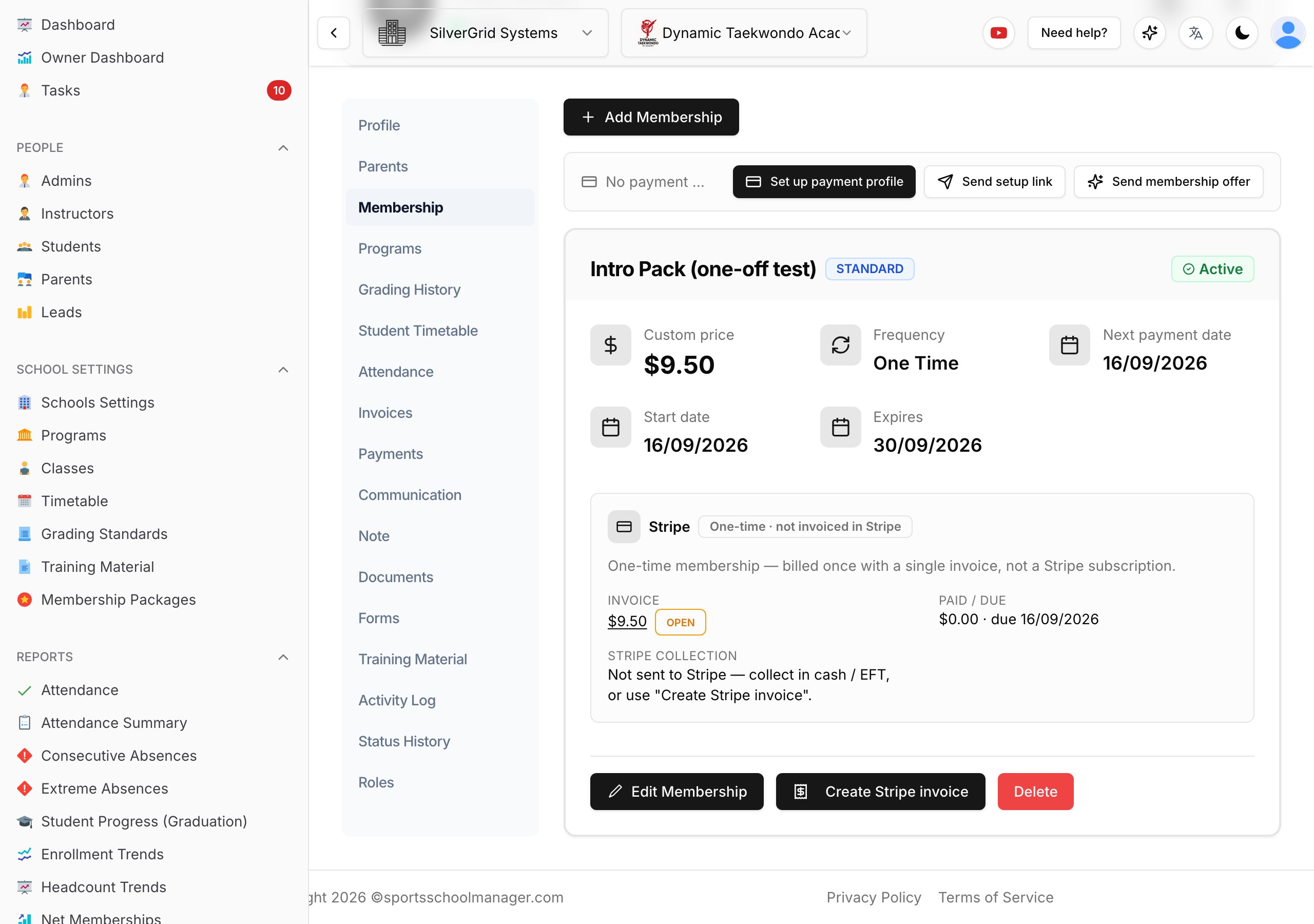
- Edit Membership is available while the invoice is open (for example to correct the expiry date). Once the invoice is paid the button is hidden — the membership was billed and settled.
- Backfill Cycles is never shown for one-time memberships — there are no billing cycles.
- Delete works as for any membership.
Tips
- Set Valid for (days) on every intro package once — you will never have to type the expiry by hand again.
- For families paying part now and the rest later, create the invoice with Collect via Stripe off and record each amount with Collect Payment.
- The Student Subscriptions report lists one-time memberships with the frequency One-time, so you can see all current intro offers and class packs in one place.
Learn more at www.sportsschoolmanager.com · More video tutorials on our YouTube channel.