How to create a school membership package
How to create a school membership package
A membership package is what a student (or a family) signs up to: it has a name, a price, and a rule for how often it is paid — once, every week, every month or every year. Everything else in billing starts from a package: when you add a membership to a student, when a family picks a membership on your public registration form, and when invoices or Stripe subscriptions are created.
This article walks through creating one package from start to finish. For worked examples of every type, see Membership package examples: one-off, weekly, monthly, yearly. For family pricing (a different price for the 1st, 2nd and 3rd child), see Family pricing: different rates for the 1st, 2nd and 3rd student.
Who can do this: owners and admins with access to the Membership page. Packages belong to a school, so make sure the right school is selected at the top of the page before you start.
Step 1 — Open Membership Packages
In the left menu, under School settings, click Membership Packages. The page lists every package your school offers as a card: name, number of classes, frequency, price per student position and whether it is linked to Stripe.
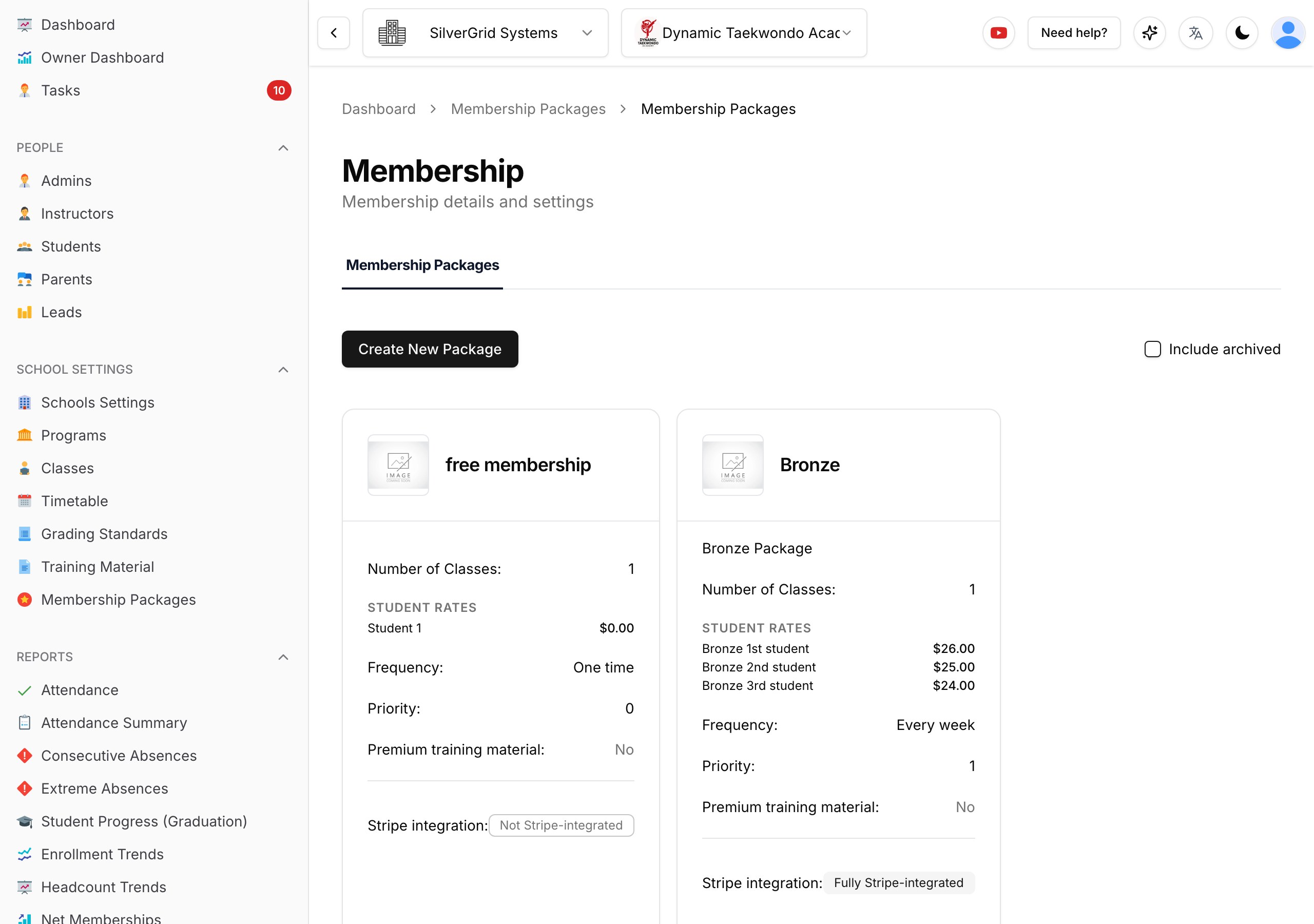
Step 2 — Click "Create New Package"
The button sits at the top of the list. It opens the package form, which has two parts: Package details (what the package is) and Student rates (what it costs).
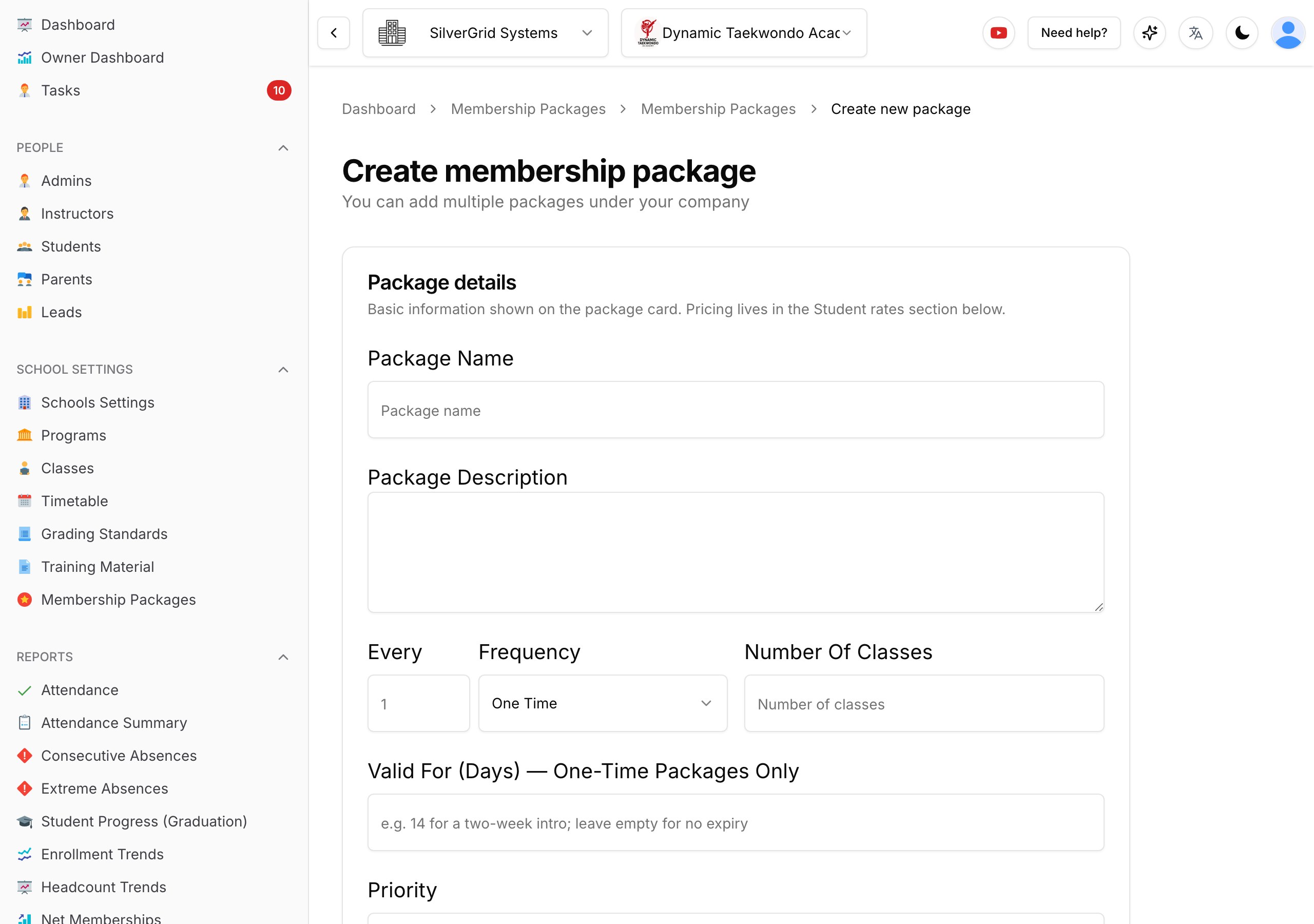
Step 3 — Fill in the package details
| Field | What to enter |
|---|---|
| Package Name | The name families see, e.g. Monthly Unlimited, Bronze, Intro Pack – 2 weeks. Keep it short; it appears on cards, invoices and the registration form. |
| Package Description | One or two sentences on what is included — how many classes a week, which programs, any conditions. |
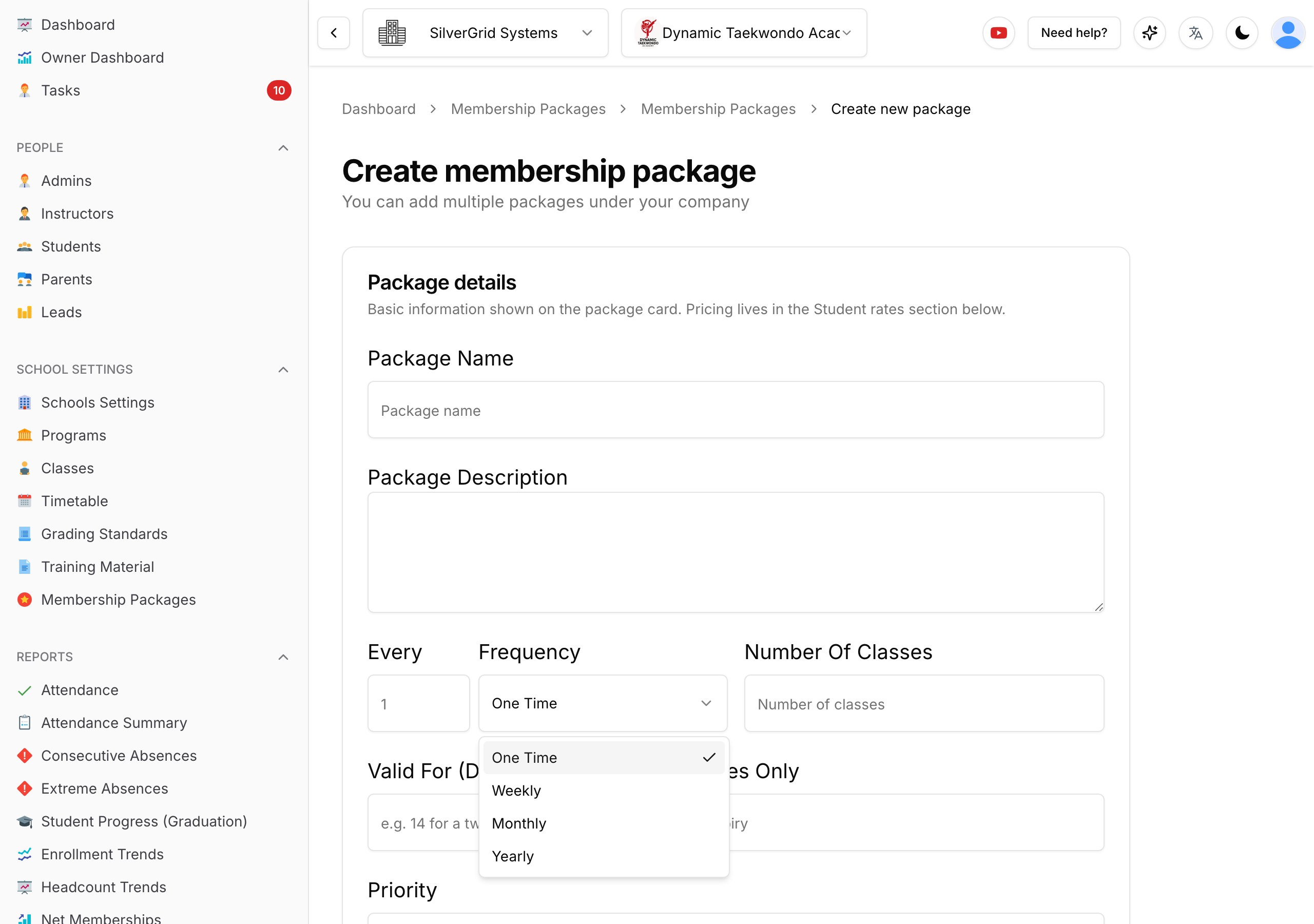
| Every + Frequency | How often the membership is paid. One Time = paid once, never renews. Weekly, Monthly and Yearly renew. Every multiplies the period: Every 2 · Weekly is a fortnightly membership, Every 6 · Monthly is a six-month term. Limits: up to 52 weeks, 12 months or 3 years. |
| Number Of Classes | Optional. How many classes the package includes — 2 for a two-classes-a-week plan, 10 for a 10-class pass. It is shown on the package card, and packages with a class count are reported as class packs on the Owner Dashboard. |
| Valid For (Days) | One-time packages only. How long the membership lasts after its start date, e.g. 14 for a two-week intro. The expiry date is pre-filled from this when the membership is assigned. Leave empty if the one-off membership does not expire. |
| Priority | Optional number used to order the packages on the page and in pickers; lower numbers come first. |
| Includes premium training material | Tick if students on this package may open training material you have marked as premium. |
| Visible on the registration form | Ticked by default. Untick to keep the package internal: staff can still assign it from the dashboard, but families cannot pick it when they register online. |
| Introductory / trial offer | Tick for short trial packages. The Owner Dashboard then counts them as intro sales and tracks how many trial students roll over to a regular membership. |
The Frequency list offers the four options:
Step 4 — Add at least one student rate
Scroll down to Student rates. The price does not live on the package itself: it lives on rates, one row per student position in a family. For a package with a single price, you only need Rate #1.
Click Add rate and fill in:
- Amount — the price per billing period in your school's currency, e.g. 26.00 for $26 a week. For a one-time package this is the full price.
- Label — how the rate is named in pickers, e.g. Student 1, 1st student, Standard.
- Description — optional note for staff.
- Stripe product — only shown when your school is set to Stripe payment management. It is optional: pick an existing product, or use Create new / Create Stripe product to let Sports School Manager create one for you. Schools on manual payments or Topiic do not see these fields.
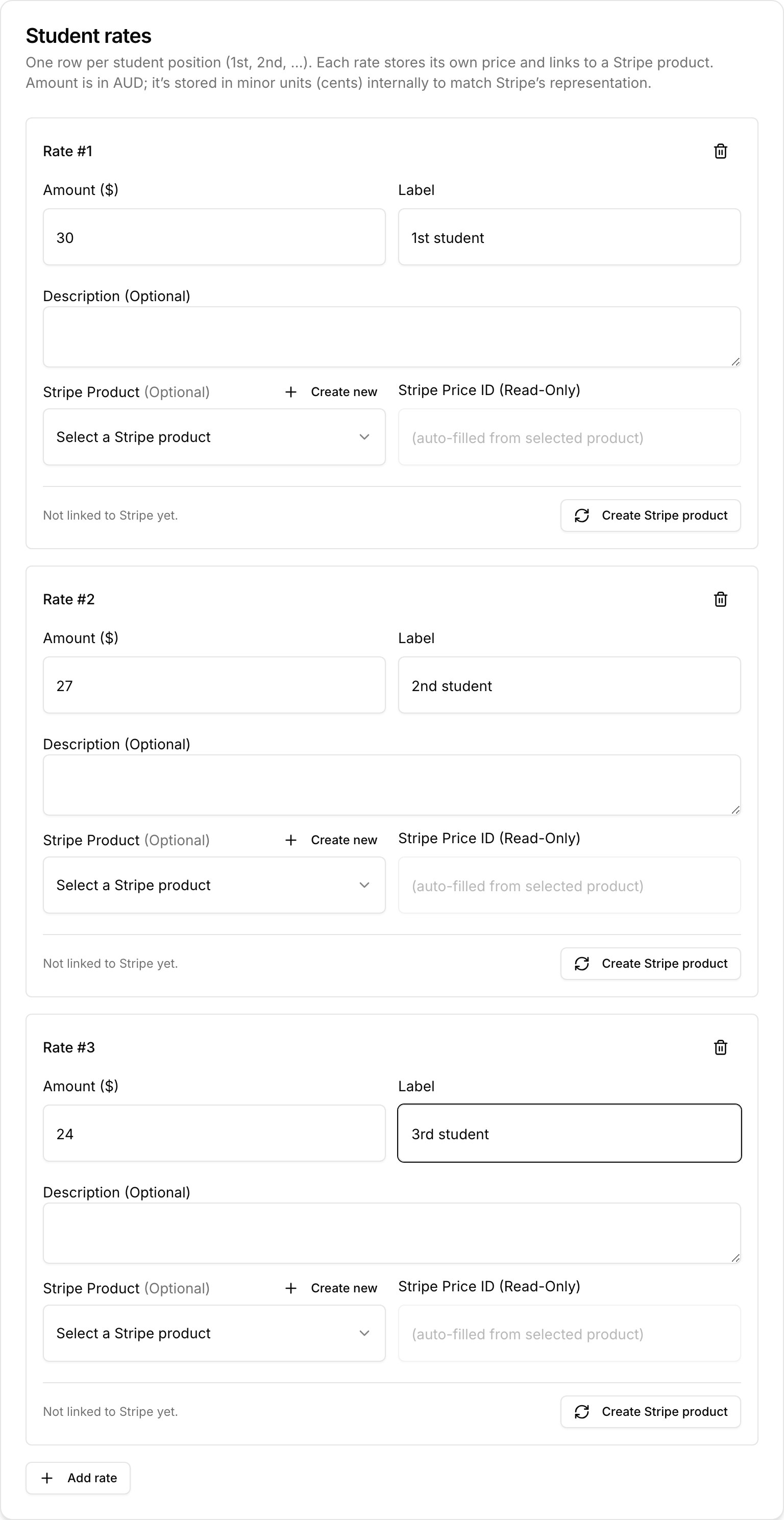
Add one rate per family position you want to price: Rate #1 is the first child, Rate #2 the second, and so on. If every child pays the same, one rate is enough. The family-pricing article explains this in detail.
Step 5 — Save
Click Save at the bottom. You are taken back to the package list, where the new card appears. From the card you can open the package again at any time to change its details or prices.
Good to know
- Copy registration link. When you open a saved package, the Copy registration link button at the top gives you a link to your public registration form with this package already chosen — handy for a campaign or a QR code at the front desk.
- Changing a price. Edit the rate's amount and save. Existing memberships keep the rate they were given until you change them on the student; new memberships use the new amount. On Stripe schools the rate is re-synced to a fresh Stripe price when you click Sync with Stripe.
- Deleting a package. A package that already has memberships or invoices cannot be deleted; it is archived instead, which hides it from the list and the pickers while keeping history intact.
- One package per school. If you run several schools, create the packages in each school, or use the admin Copy Program tools to speed things up.
Learn more at www.sportsschoolmanager.com · More video tutorials on our YouTube channel.