Localization — timezone, currency, date & time formats
Localization — timezone, currency, date & time formats
SSM shows every date, time and price the way you work — a school in Perth on 24-hour time and AUD, a school in Skopje on МКД: each sees its own formats everywhere in the app. This article explains where those settings live and how a school inherits them from the company.
How SSM decides which setting to use
Each setting is resolved in the same order:
- School — a value set on the school always wins (Schools Settings → Localization).
- Company — if the school leaves a setting on Use Company Default, the company value applies (Company → Localization).
- Platform default — if neither is set: currency AUD, date format DD/MM/YYYY, time format 24-hour.
Set your preferences once at the company level and only override at a school when that school genuinely differs (a branch in another country, for example).
What each setting controls
- Timezone — scheduling and displaying times across the school: the timetable, check-in windows, reports. Staff browsing from another timezone still see the school's actual schedule.
- Currency — how prices are shown for membership packages, billing, payments and reports.
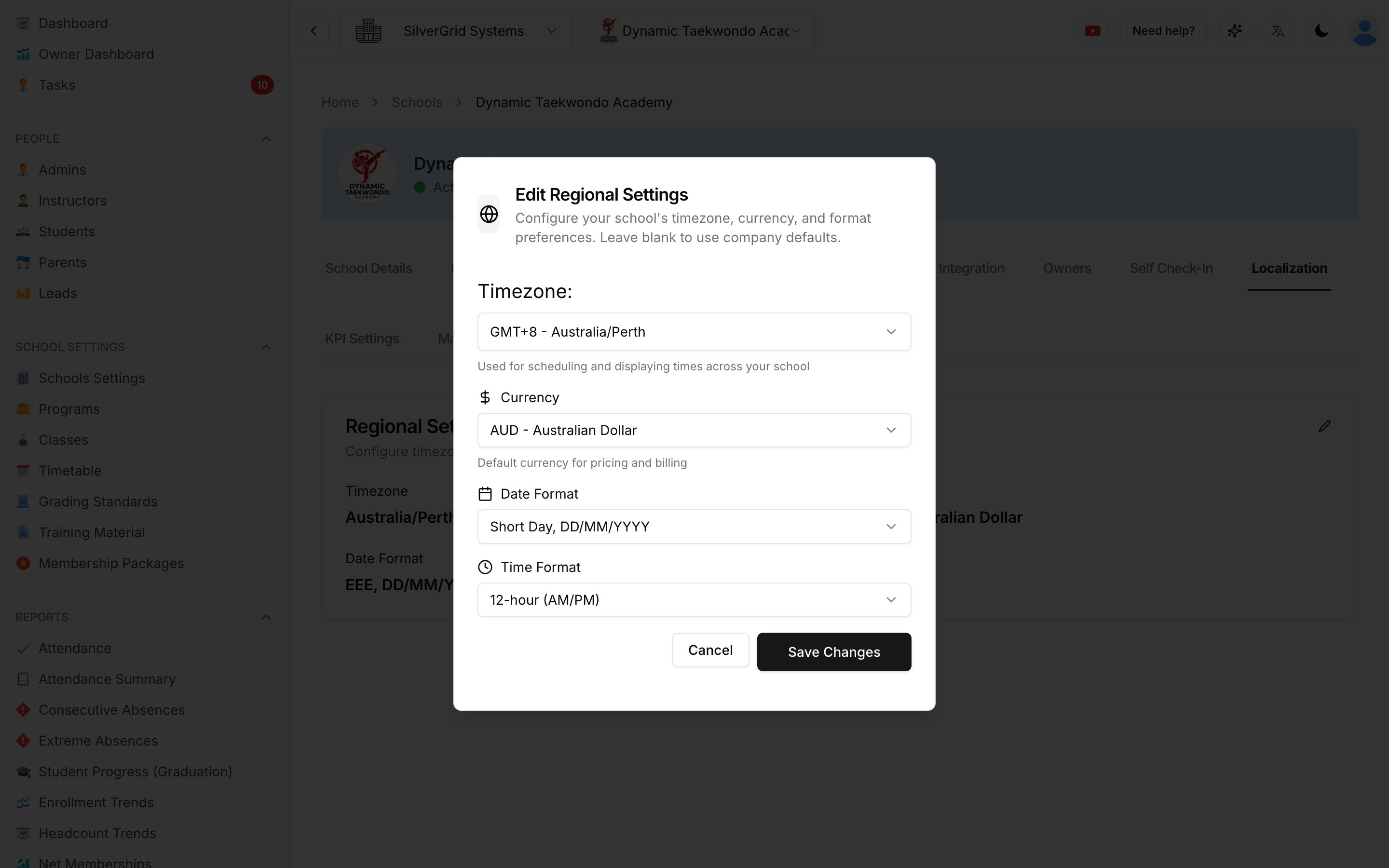
- Date Format — how dates appear throughout the dashboard (for example DD/MM/YYYY or Short Day, DD/MM/YYYY).
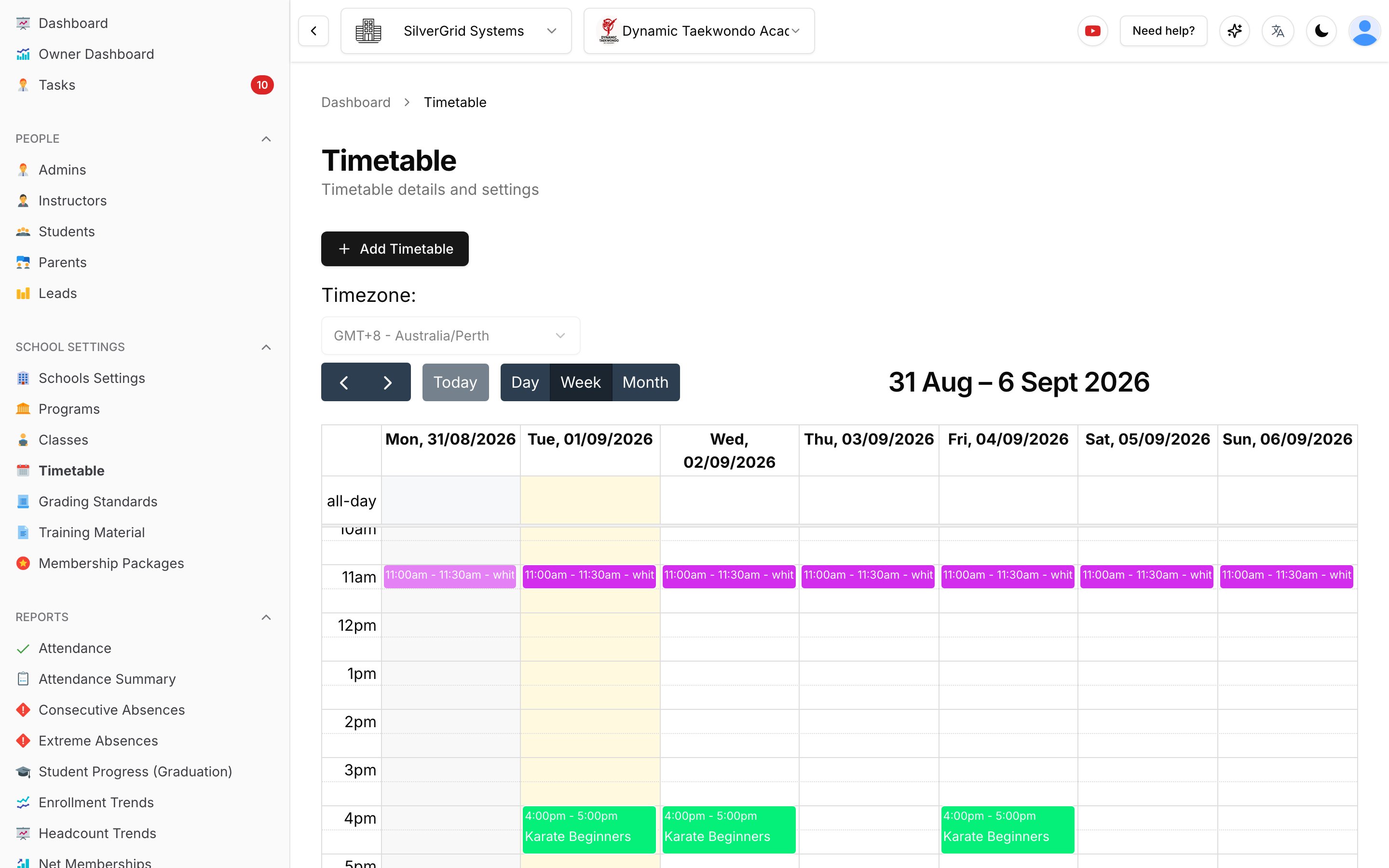
- Time Format — 12-hour (AM/PM) or 24-hour, applied wherever times are displayed, including the timetable.
Company level — set the defaults
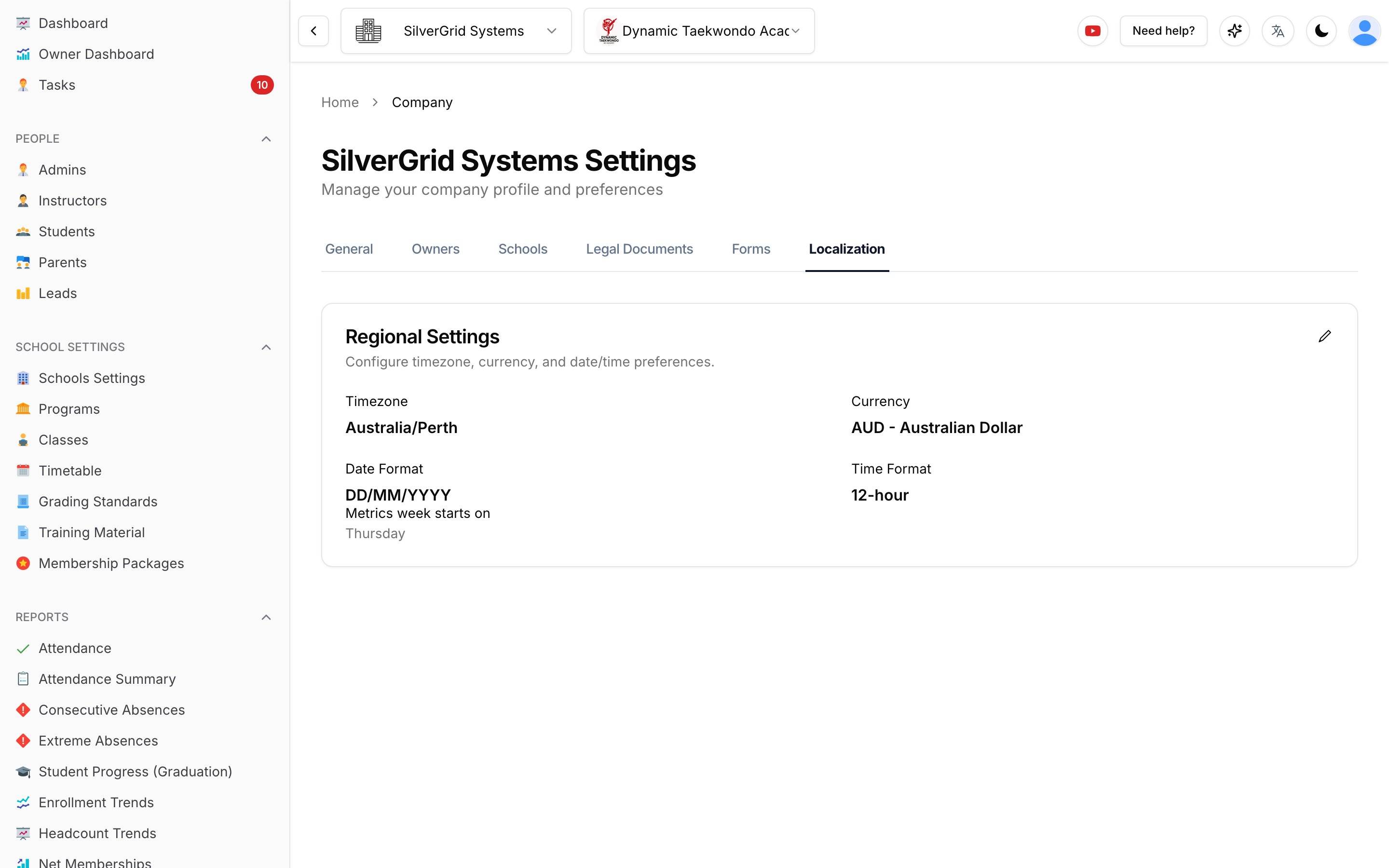
Open your company from the top-left switcher, then the Localization tab. The Regional Settings card shows the current company-wide values — click the pencil to edit. (This page is also where Metrics week starts on for the Owner Dashboard is configured.)
School level — override where needed
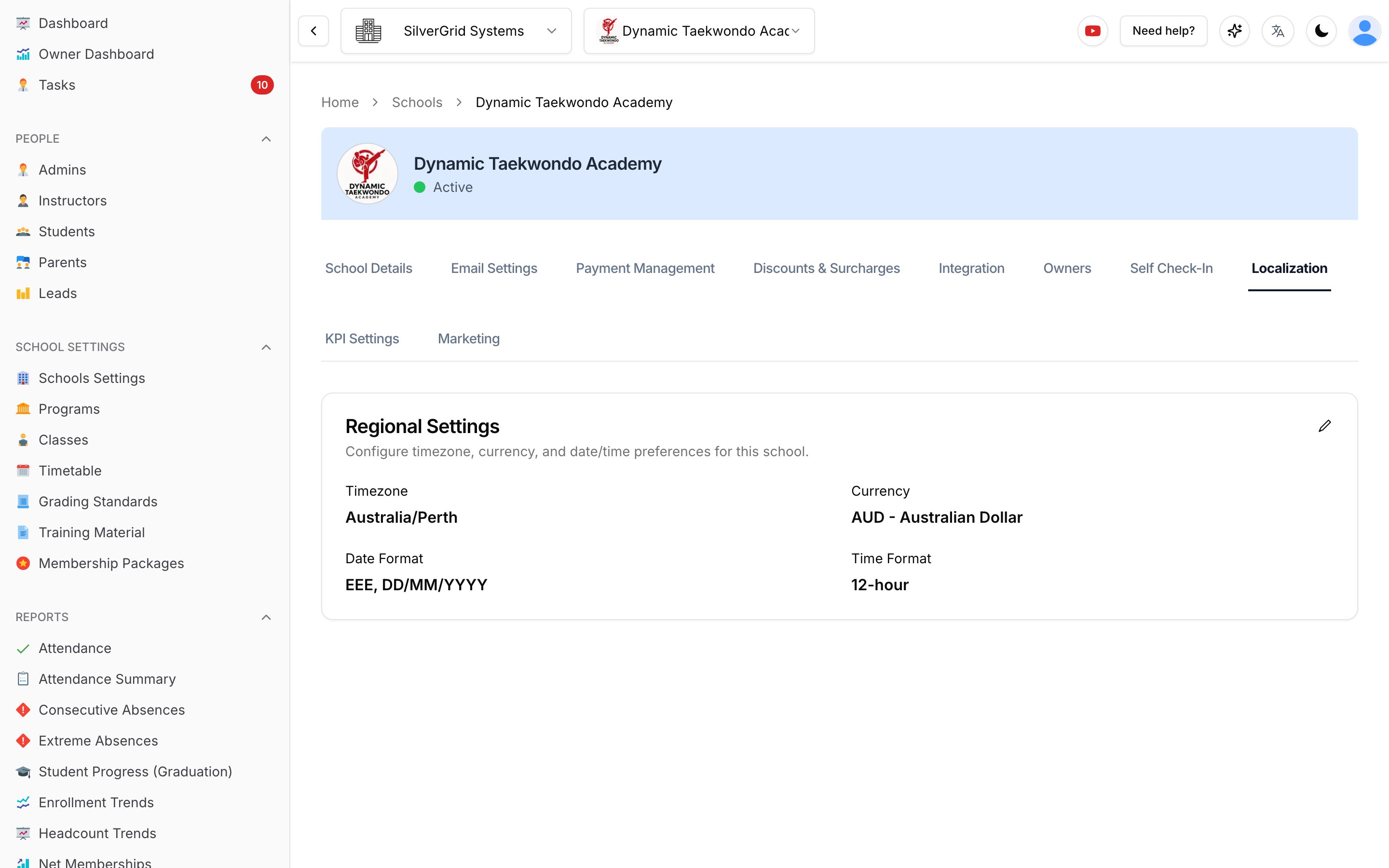
Go to Schools Settings, open the school, then the Localization tab. The card shows what the school is actually using right now.
Click the pencil to edit. Every field offers Use Company Default (…) — with the company's current value shown in brackets — plus the specific options. Pick a specific value only when this school should differ from the rest of the company.
The effect — an example
With the time format set to 12-hour (AM/PM), the timetable (and every other time in the app) switches from 16:00 – 17:00 to 4:00pm – 5:00pm:
Changes apply immediately — just refresh the page you are looking at.
Learn more at www.sportsschoolmanager.com · More video tutorials on our YouTube channel.