Check-in notes — pop up a reminder when a student checks in
Check-in notes — pop up a reminder when a student checks in
Sometimes you need to catch a student the next time they walk in — “your insurance is due for renewal”, “your watch has been found, speak to reception”. Check-in notes do exactly that: put a note on the student's profile and it pops up on your screen the moment they check into class. Action it when it's dealt with, or keep it and it pops up again next visit.
Step 1 — Add a note to the student
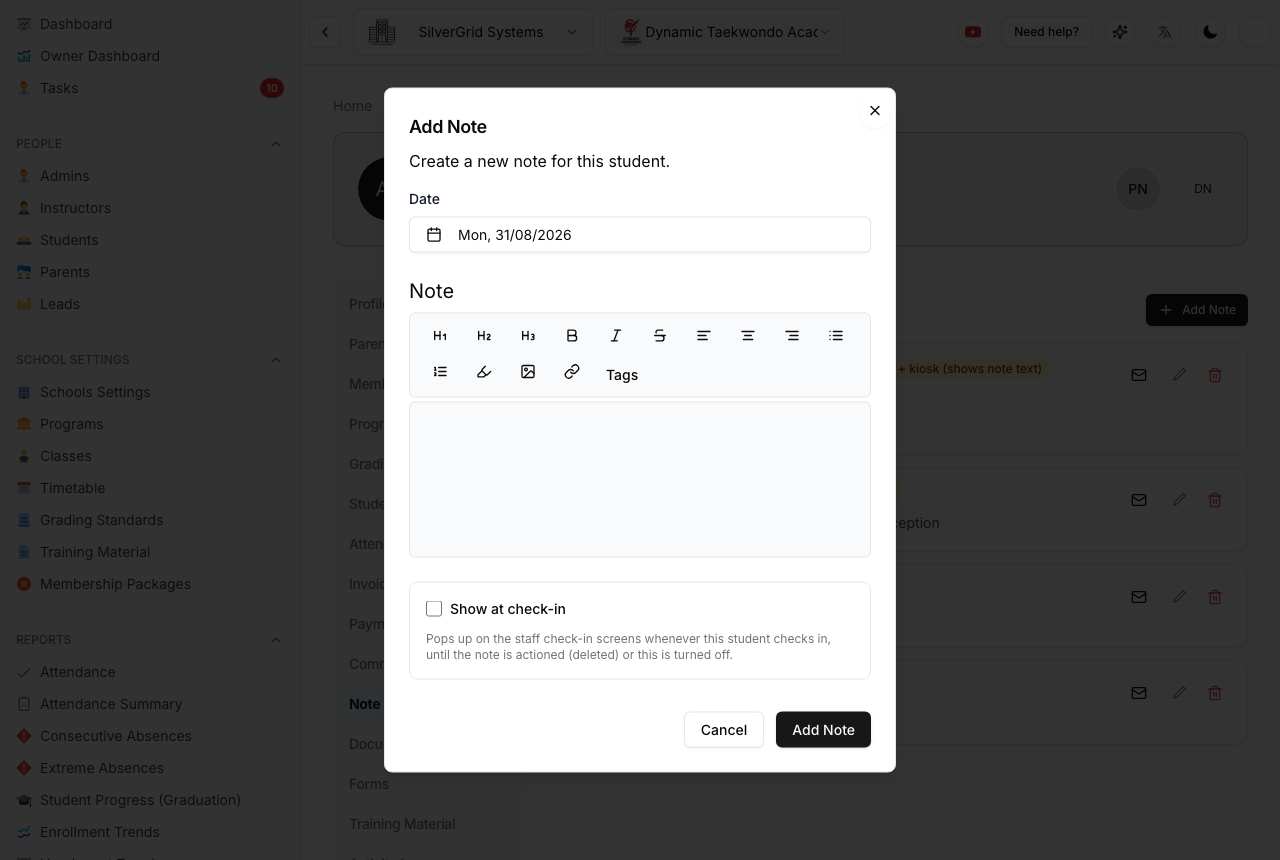
Open the student's profile → Note tab → Add Note (or edit an existing one) and tick Show at check-in. The options:
- Show at check-in — the note pops up on the staff check-in screens whenever this student checks in, until it's actioned.
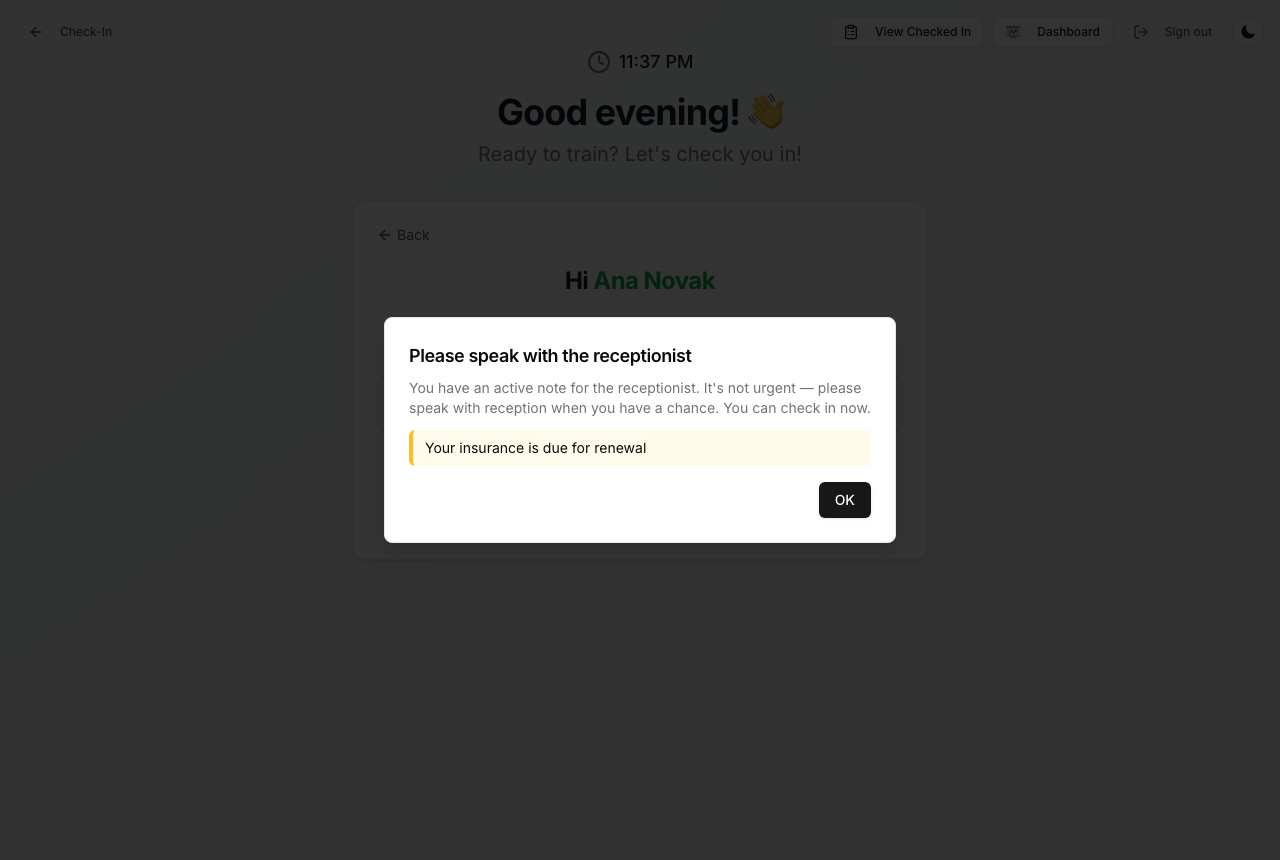
- Also tell the student at the kiosk (optional) — the self check-in screen prompts the student too. You choose between the generic message (“Please speak with the receptionist”) or showing the note's text — pick the text only when it's fine for anyone near the kiosk to read it.
- Escalate on… (optional) — if nobody actions the note by this date (for example the student hasn't come in), SSM automatically creates a follow-up task for your staff, emails the note to the student/parents, or both.
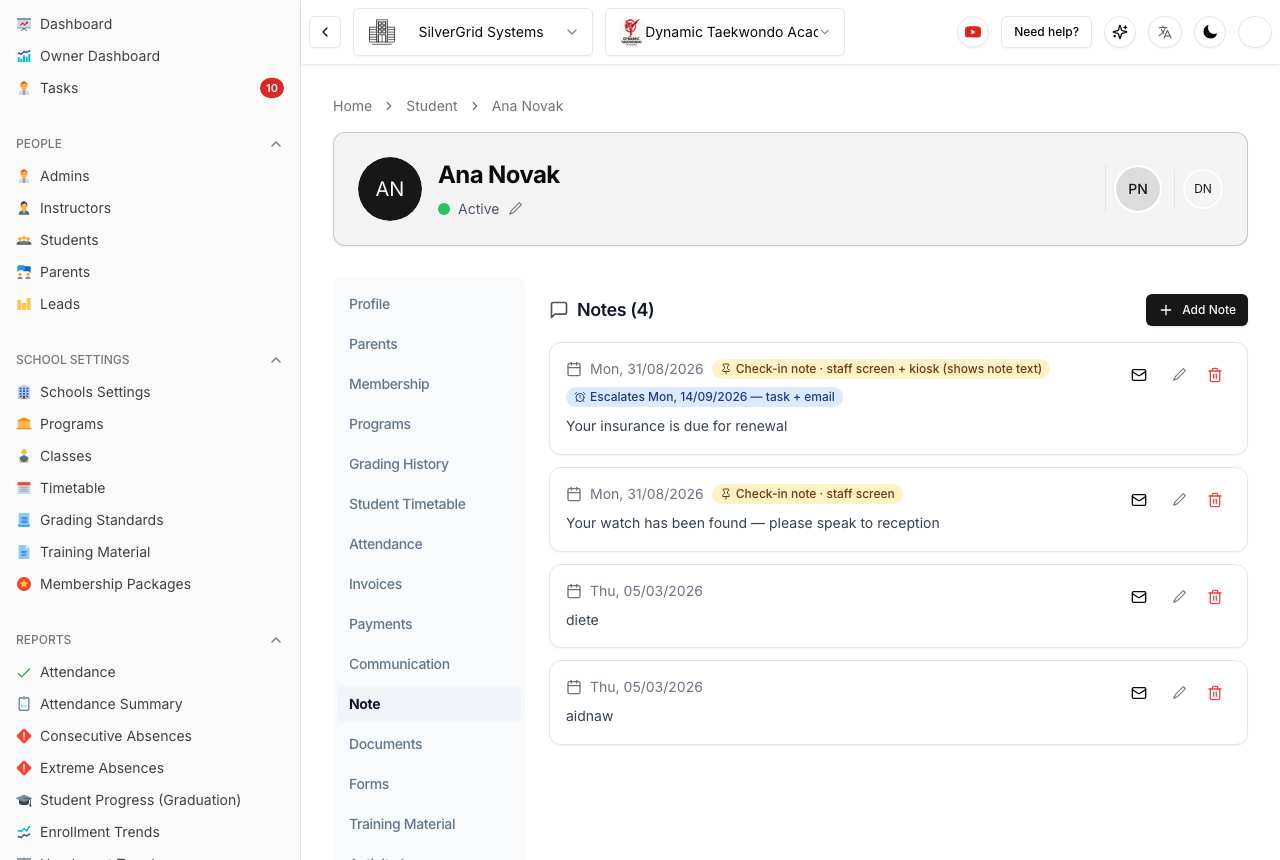
Each note card shows its settings at a glance — where it appears, when it escalates, whether it was emailed, and how many times the kiosk has shown it. A student can have several check-in notes at once.
Step 2 — When the student checks in
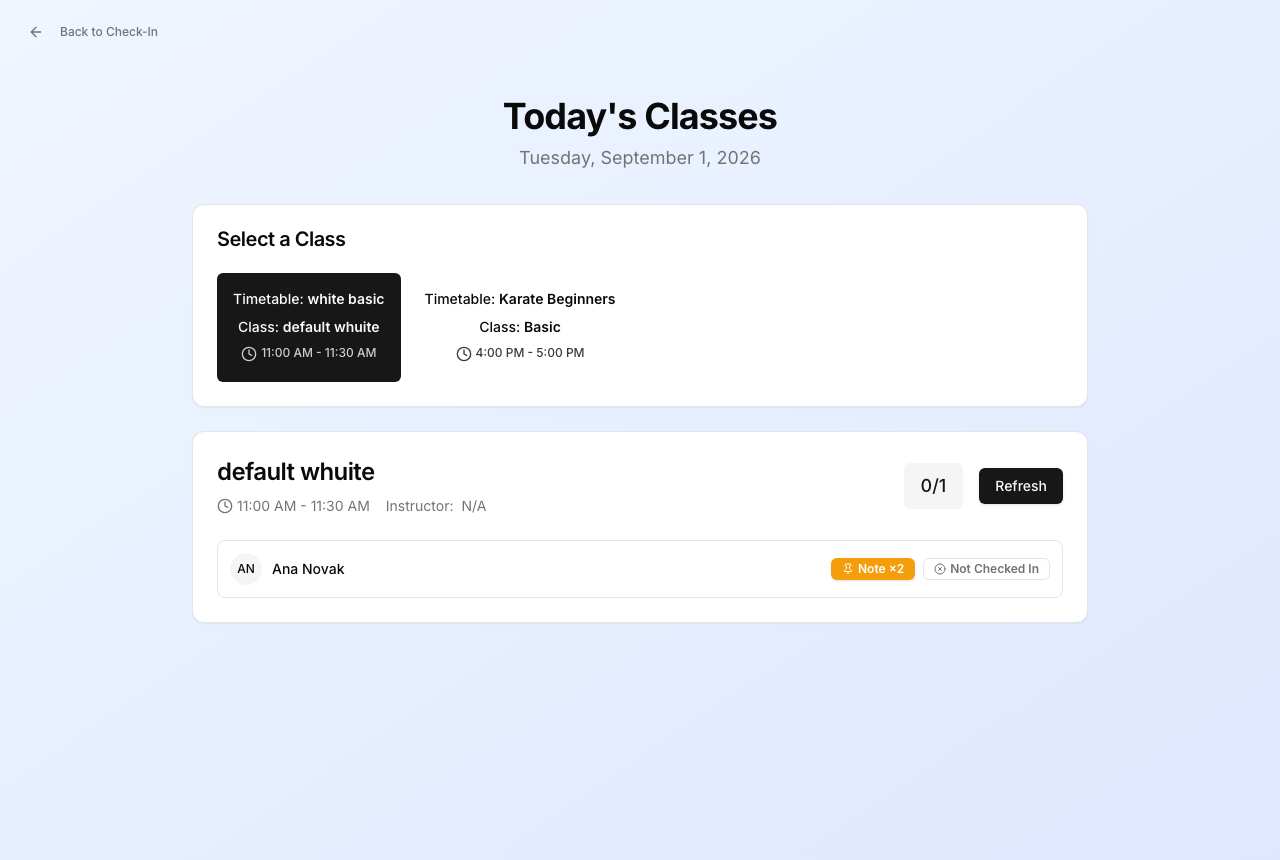
On the Checked-In screen (the one you watch during class — it refreshes itself every 20 seconds), a student arriving with notes triggers one pop-up listing all of them:
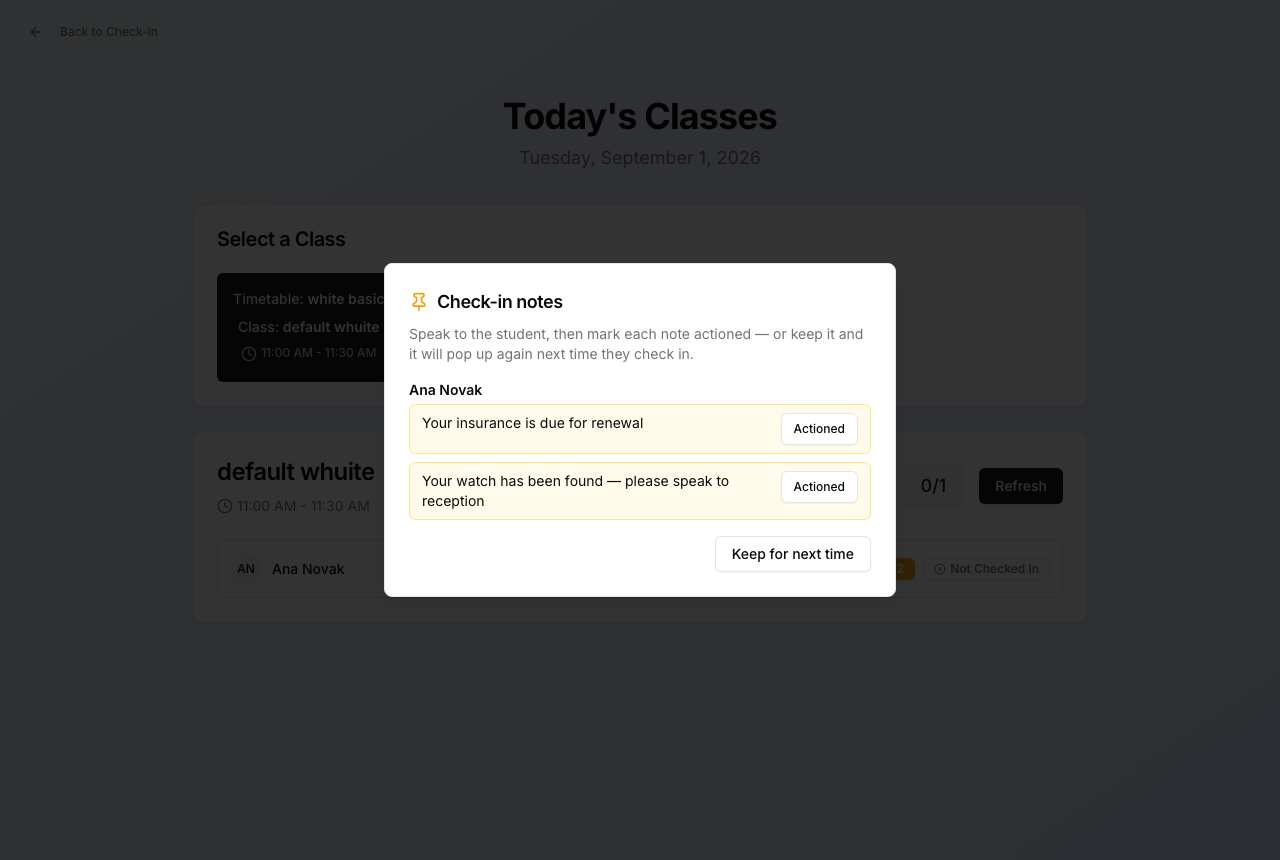
- Actioned — you've dealt with it; the note is removed (and recorded in the activity log).
- Keep for next time — the note stays and pops up again on their next check-in.
Students with notes also carry an amber 📌 Note badge on their row — click it any time to reopen the pop-up. The same notes appear on the Attendance screen: marking that student present opens the confirmation dialog with the notes listed, each with its own Actioned button.
What the student sees at the kiosk (optional)
When you ticked the kiosk option, the self check-in screen shows the student a prompt — the generic “Please speak with the receptionist”, plus the note text if you chose to display it. Check-in still proceeds normally. Every time the kiosk shows a note, the note's “shown” counter goes up and an activity-log entry is written, so you always know whether they've seen it.
Escalation — when they don't come in
A check-in note only works if the student shows up. Set Escalate on and, once that date passes with the note still there, SSM automatically (once):
- creates a medium-priority task “Chase student: …” linked to the student, and/or
- emails the note text to the student (or their parents when the student has no email).
Changing the escalation date re-arms it. Actioning the note before the date means nothing fires.
Sending a note by email
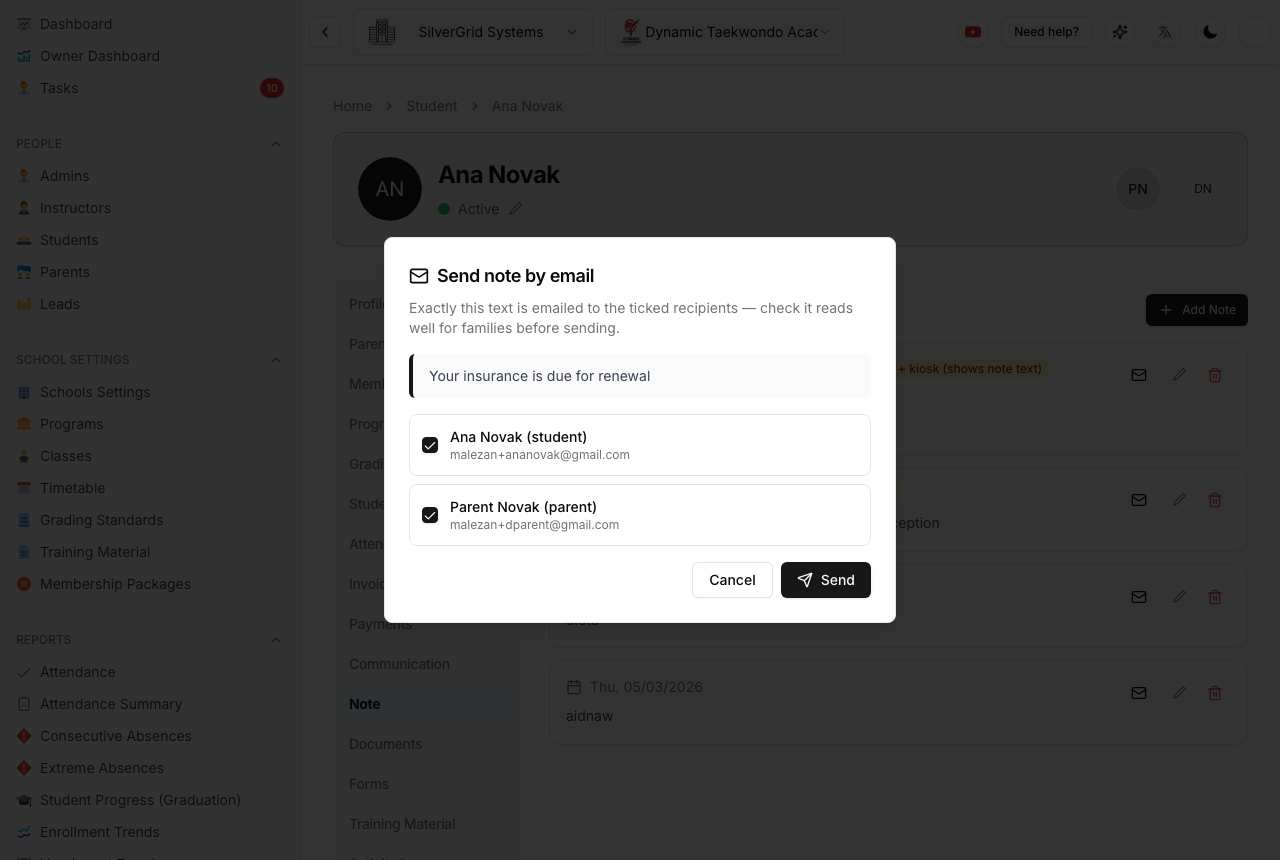
Any note can also be emailed on the spot: the ✉︎ button on the note card opens a dialog where you pick the recipients (student and/or parents), see exactly the text that will be sent, and send. The email is recorded on the student's Communication tab and the note is marked “Emailed”.
Everything is tracked
The student's Activity Log tab records the full story: note created → emailed → shown at the kiosk → escalated → actioned, each with who and when.
Learn more at www.sportsschoolmanager.com · More video tutorials on our YouTube channel.